
Omni24 makes it easy to move your customer data around! Whether you are doing a backup of your contact list or bringing in contacts from another system, our export and import features can handle it efficiently.
Note: Everything works with simple CSV files, so you don't need to be a tech wizard to get it done.
Export Customer List
Need your customer data outside of Omni24? We have got you covered with a complete guide for exporting all your contact details, conversation history and custom fields.
Step 1:
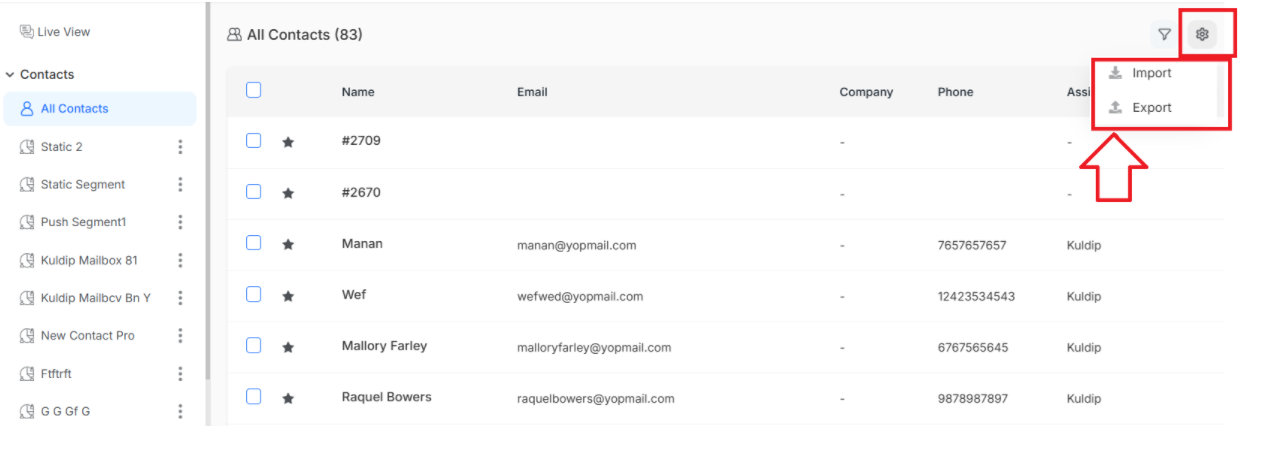
Navigate to CRM > All Contacts > Settings icon > Export. Click on Export..
Step 2:
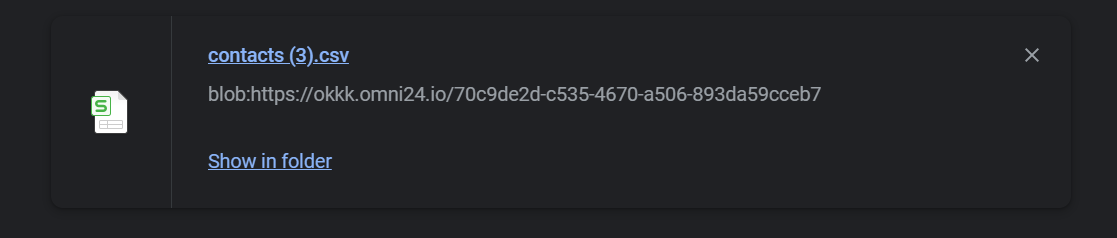
Your CSV file downloads automatically to your device; it's that simple!
Import Customer List
Moving from another platform or having a spreadsheet full of contacts? Upload them all at once and get your customer database up to date in minutes.
Step 1:
To import the customer list navigate to CRM > All Contacts > Click on Settings Icon. Choose Import from the list
Step 2:
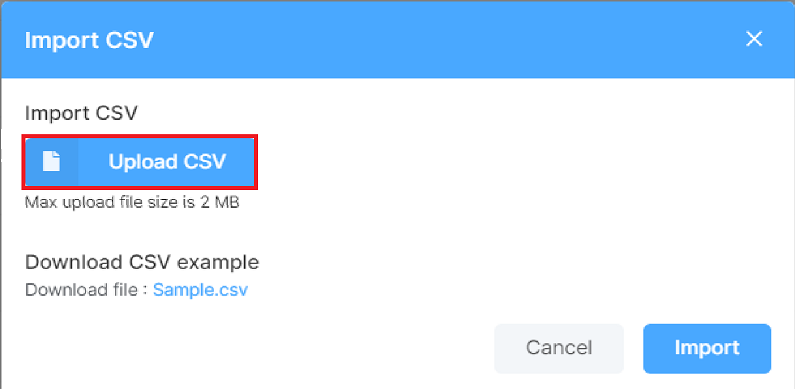
The Import CSV window appears. Upload your CSV file and click Import. You will find all contacts have been uploaded in our system
What's Next? Now that your customer data is exactly where you need it, let's make your conversations even more organized and personalized
- Create and Manage Tags: Label and sort your conversations with tags for better workflow