
The feature helps you to connect your Yahoo accounts with the Omni24 inbox, centralizing all email communications in one interface as well as reducing the need to switch between channels while communicating. Let's explore how to connect your Yahoo account
Step-by-Step Guide
Step 1:
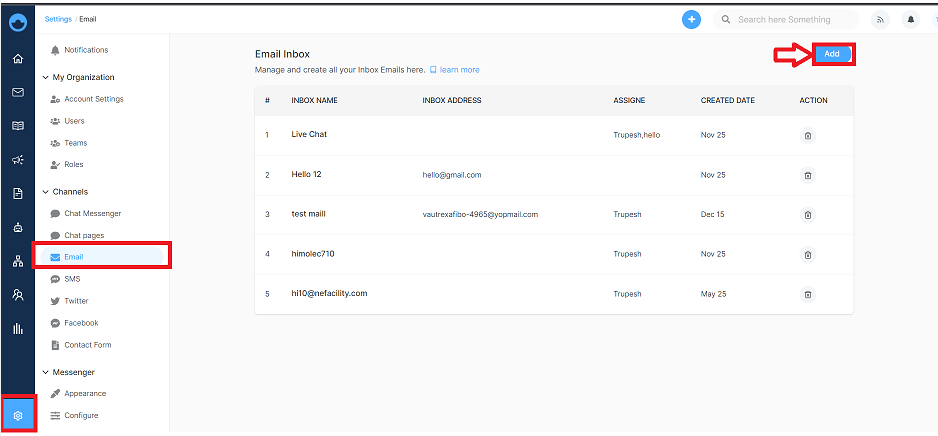
- Navigate to settings from the dashboard menu
- Scroll down to the Channels section
- Under Email, click on Add.
Step 2:
- A Set-up Email page opens, click on the other email client
Step 3:
- An inbox creation form will appear
- Enter all the details related to the inbox
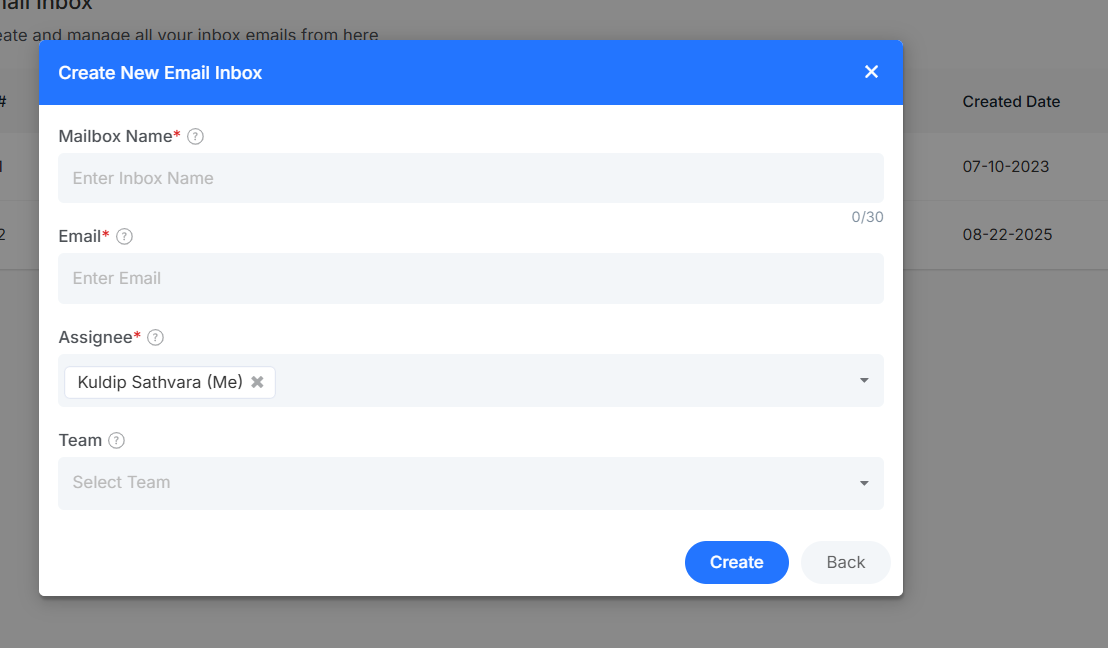
Filed required are:
- Mailbox Name. - Specify the name of the inbox
- Email - Specify the Yahoo account that you want to connect to the Omni24 inbox
- Assignee - Allocate team members who will handle the inbox
- Team - Select the team that will manage all conversations from the inbox
Once done, click on Create.
How to set up Email Forwarding
Click on Need Setup beside the inbox to set email forwarding
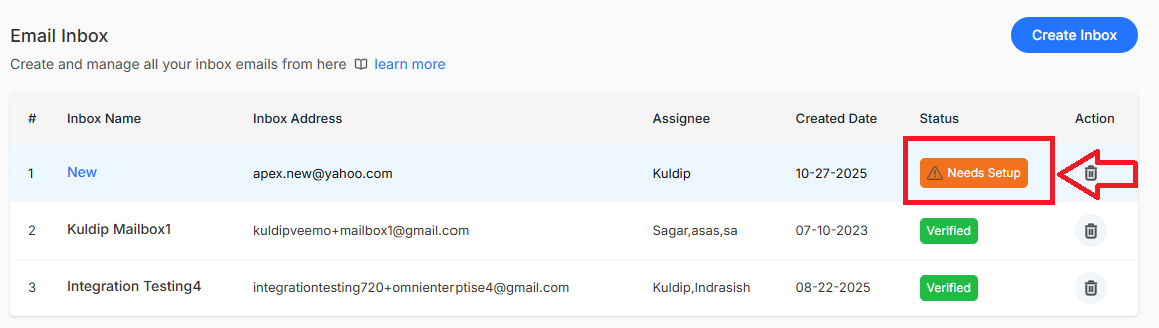
- A forwarding Email Pop-up will appear where you have to do the following things:
- Copy the Omni24 Email provided in the pop-up
- Go to the Yahoo account you want to forward emails from. Click the gear icon in the top right and click on More Settings
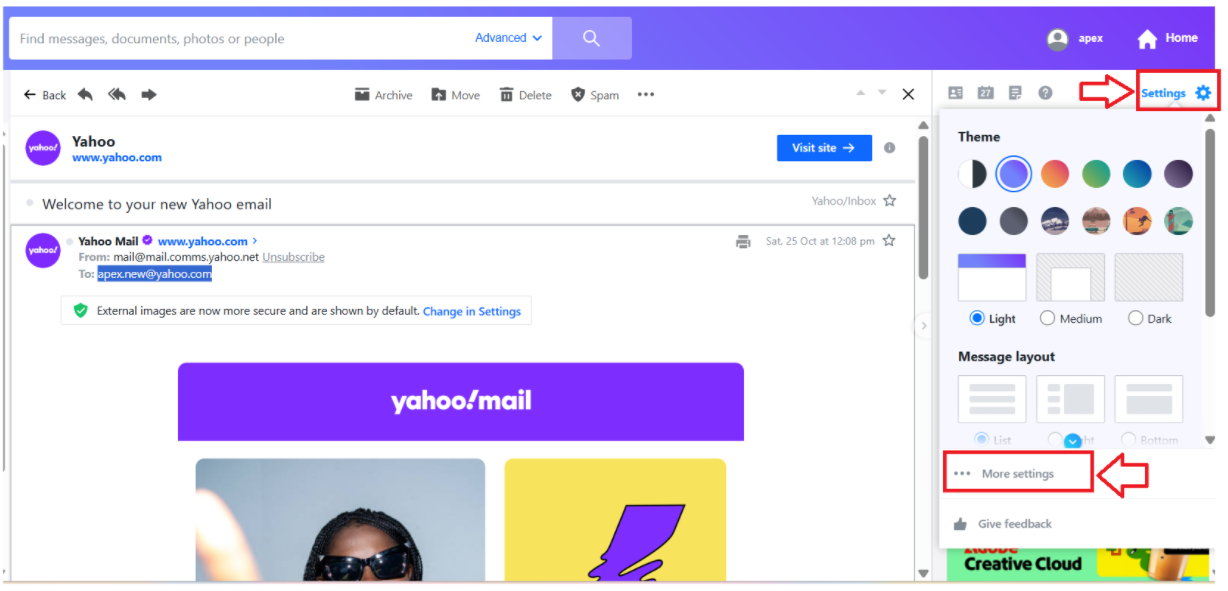
- Navigate to the mailboxes option and select the main box you want to forward.
- Scroll down to the button and under forwarding, enter the destination email in which you want to forward
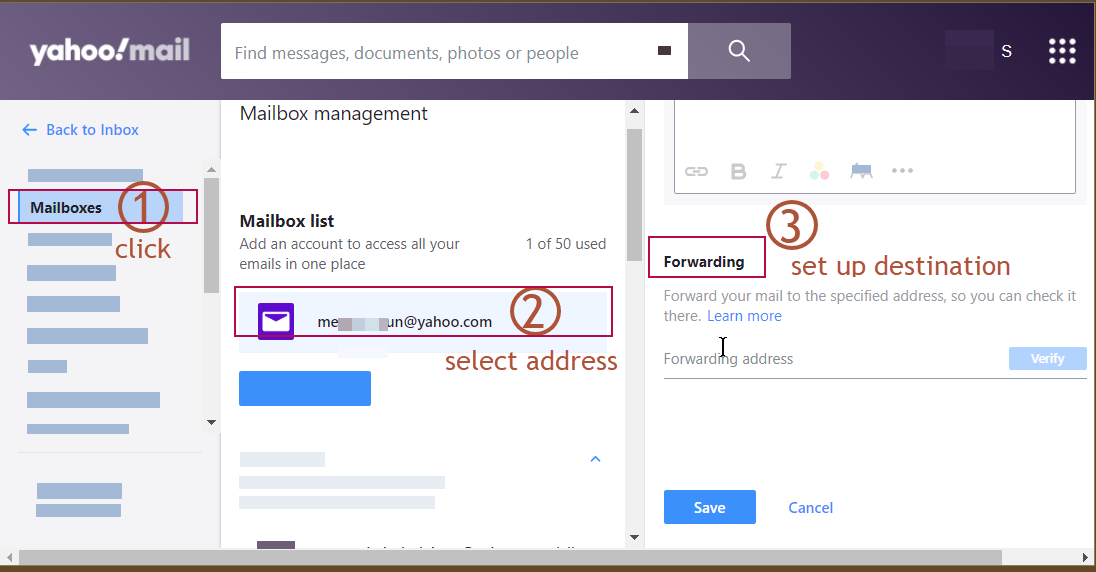
- Once done, click on save. Move to the Email setup section in Omni24 and click on “I have set up my email forwarding.” A confirmation will pop up