
Connect your Google Business Profile with Omni24 to centralize customer messages from Google Maps and Search ensuring no inquiry goes unanswered across multiple channels. Google Business Profile enables businesses to manage their online presence across Google Search and Maps where customers discover information and send direct messages to businesses.
Prerequisites for Connection:
1. Active Google Business Profile - You must have a verified Google Business Profile with messaging features enabled for your business location
2. Admin Access Required - You need administrator-level access to your Google Business Profile account to authorize the integration connection
3. Messaging Enabled - Ensure that customer messaging is turned on in your Google Business Profile settings before attempting integration
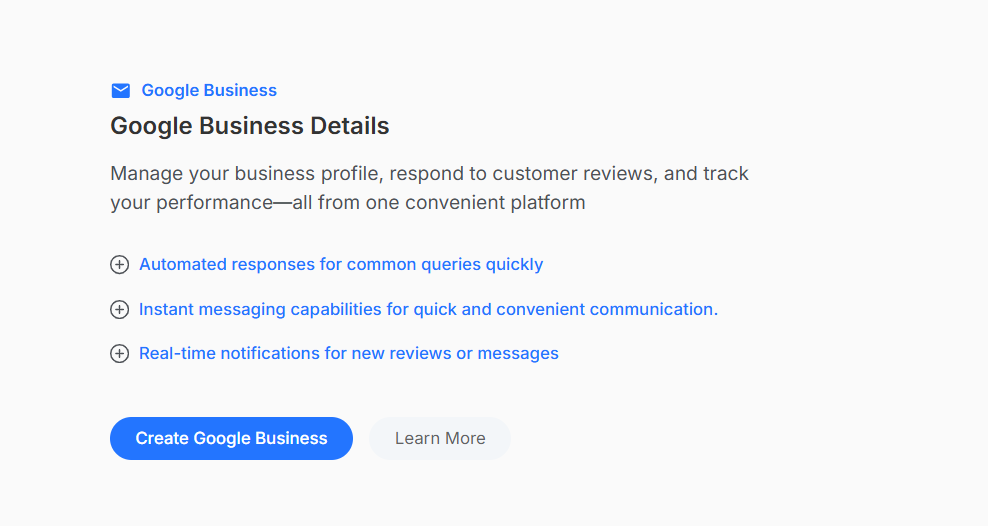
How does Google Business and Omni24 Connection Help?
1. Centralize Google Messages - Receive and respond to customer inquiries sent through Google Search directly within your Omni24 inbox
2. Faster Response Times - Manage Google Business Profile messages alongside to eliminate the need to check multiple platforms separately
3. Complete Customer Context - Access full customer conversation history when they message from Google while viewing their profile
4. Team Collaboration - Assign Google messages to specific inboxes and team members to collaborate on responses using Omni24's workflow tools
Steps to Connect Google Business Profile with Omni24:**
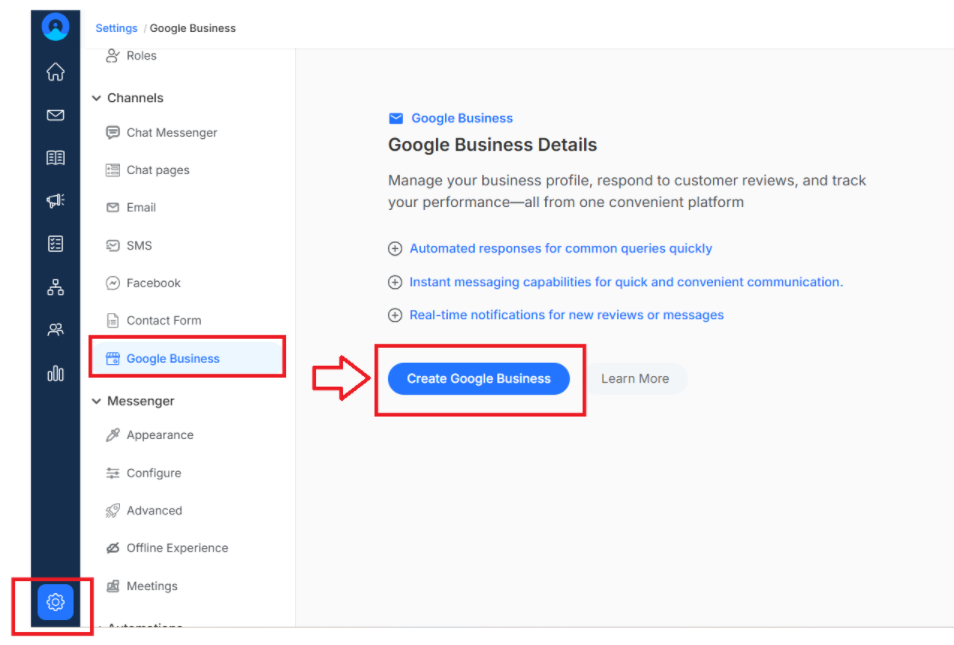
Step 1: Navigate to Settings > Channels in your Omni24 dashboard. Locate and click on Google Business
Step 2: Click "Connect Google Business " to initiate the authorization process
Step 3: Sign in with your Google account that has admin access to your Business Profile
Step 4: Review and grant the required permissions for Omni24 to access your messages