
Team inbox in Omni24 serves as the central hub for managing all customer communications across multiple channels. The unified approach ensures no customer queries is missed while streamlining your workflow. It allows you to consolidate conversations from email, social media, live chat and contact forms.
Key Benefits of Connecting Different Channels:
- Improved Response Time: Streamline team collaboration and reduce response time to customer queries with organized routing and assignment.
- Enhanced Customer Experience: Provide consistent service quality across all communication channels without switching between platforms.
Understanding Your Inbox
Navigate to the Inbox from the main dashboard menu to explore all features of the shared inbox
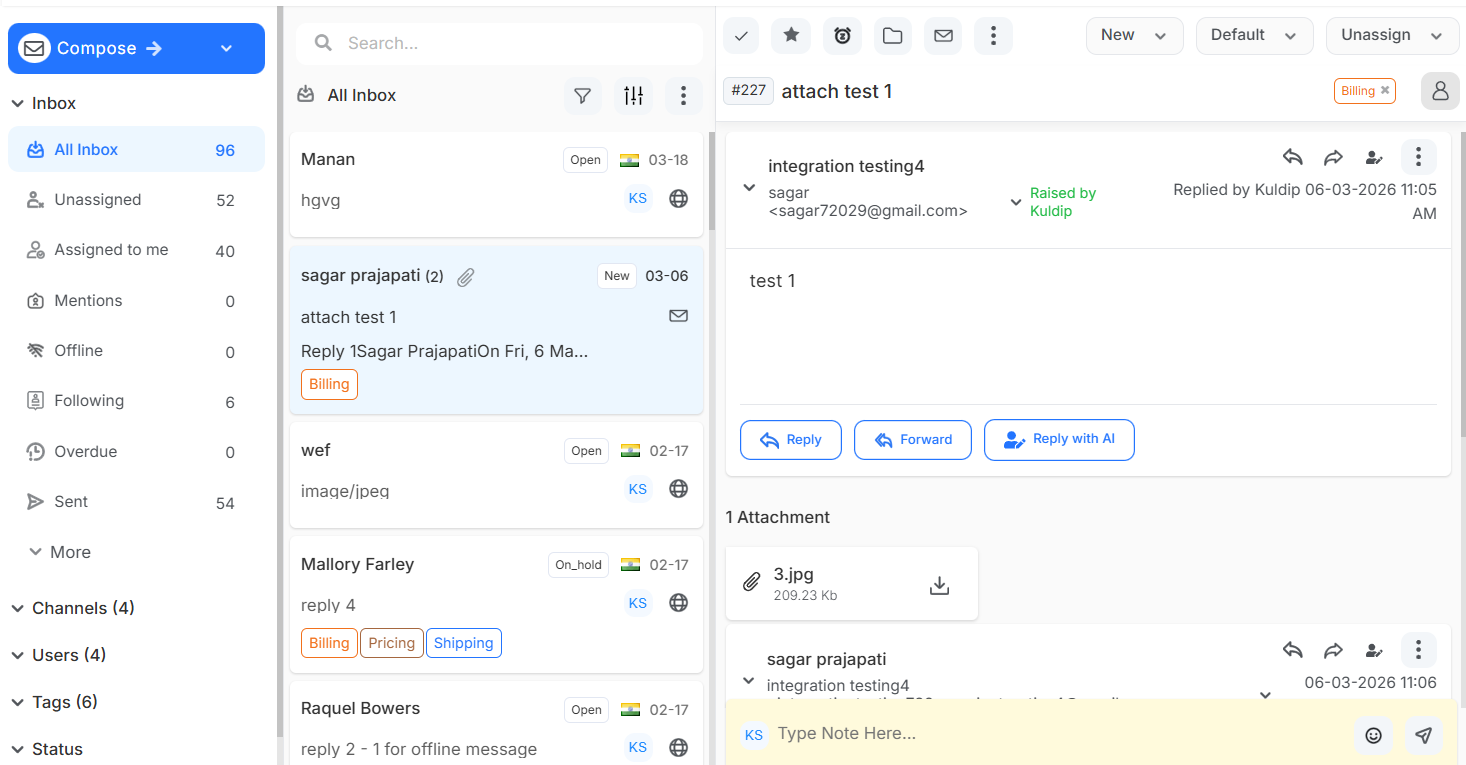
The team inbox is your command center for customer communications, where all conversations appear in a single view. It displays real-time customer interactions with multiple options to assign, prioritize and track conversations to eliminate the need to switch between multiple platforms.
Click here to access detailed information about inbox management.
Connecting Email Channel
To access the email channel Nvaigate to settings > Channels > Email
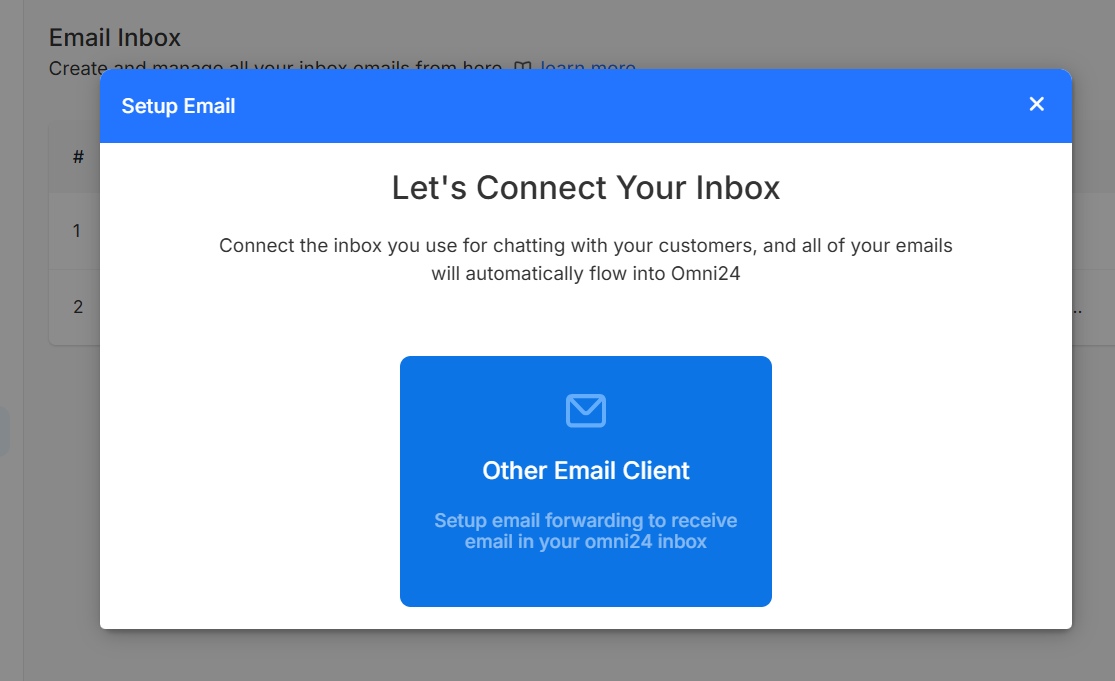
Email integration allows you to transform email into a collaborative team inbox where multiple agents can efficiently handle. When you connect your email, all incoming conversations become tickets that can be assigned to agents. Supports both Gmail direct connection and email forwarding from other providers to ensure flexibility.
Email Channel Configuration
Configuring your email channel properly for professional communication with features like:
- Custom signatures
- Automated responses
- Branded templates.
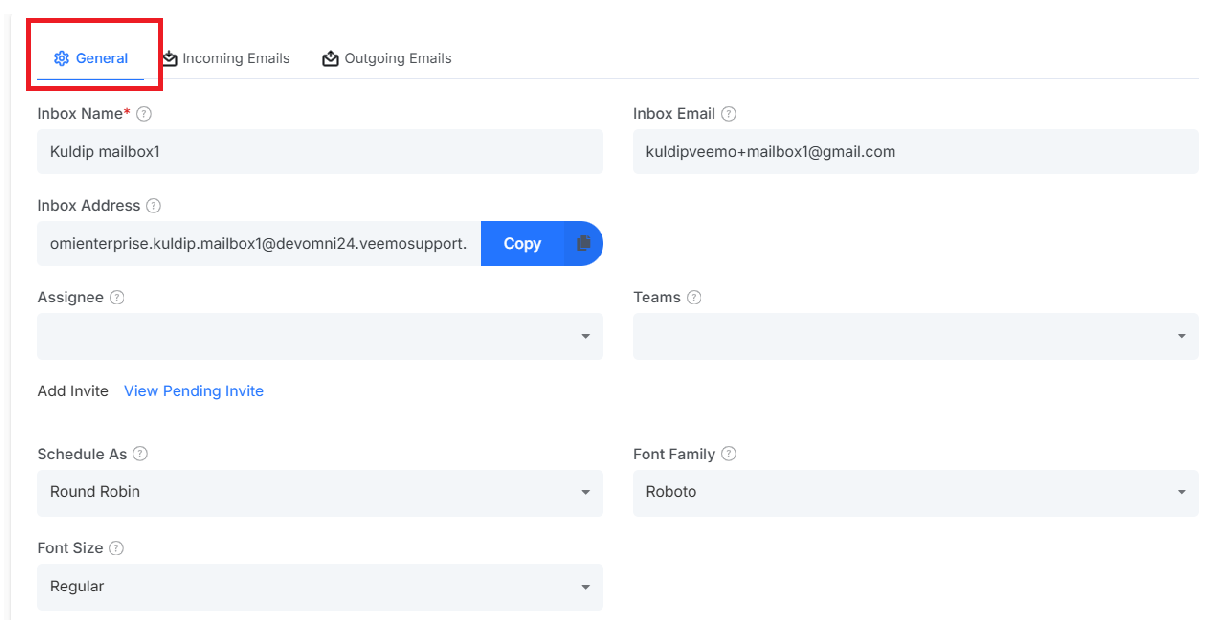
This setup reduces response time and maintains consistency in customer communication across your entire team.
Incoming and Outgoing Email Management
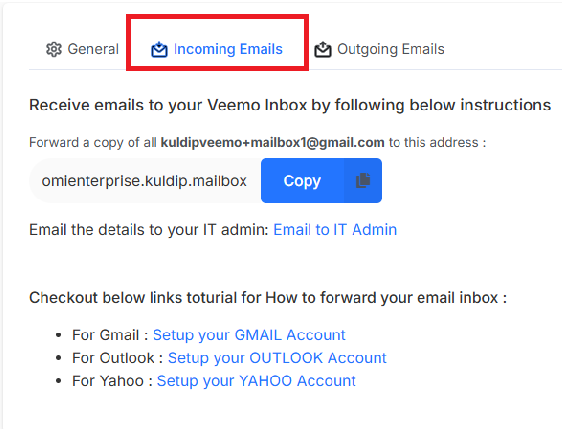
Incoming email setup ensures all customer emails reach your inbox automatically without manual forwarding. To access Chat Pages Navigate to Settings > Channels > Email > Incoming Email or Outgoing Email
Outgoing email configuration enables your team to send emails from your business domain to maintain professional credibility.
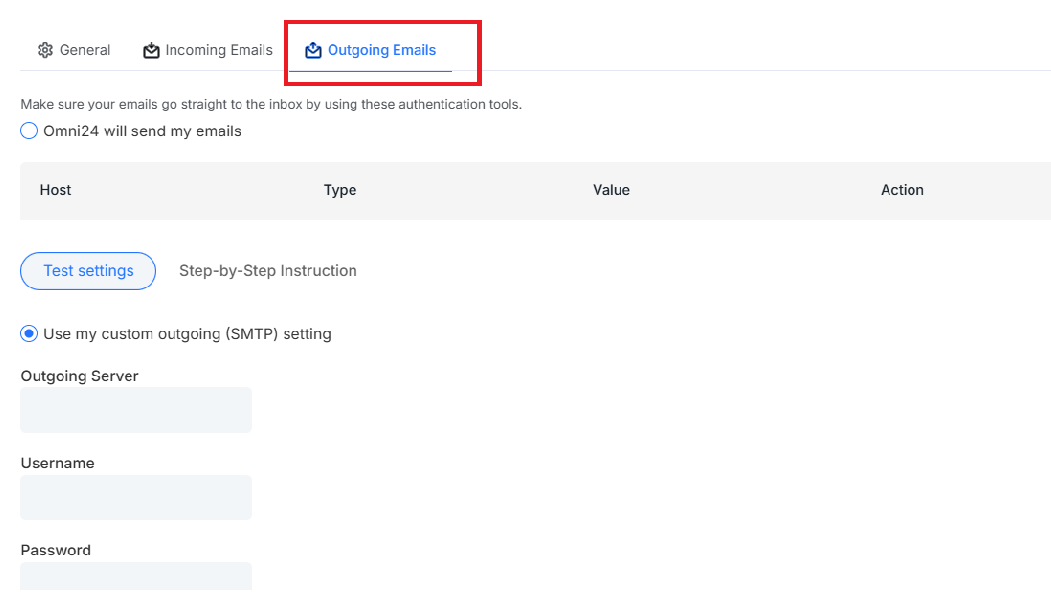
The bidirectional setup creates a seamless experience where customers receive responses from business addresses while teams manage everything a unified place.
Connect Facebook Business Page
To access Chat Pages Navigate to Settings > Channels > Facebook Channel
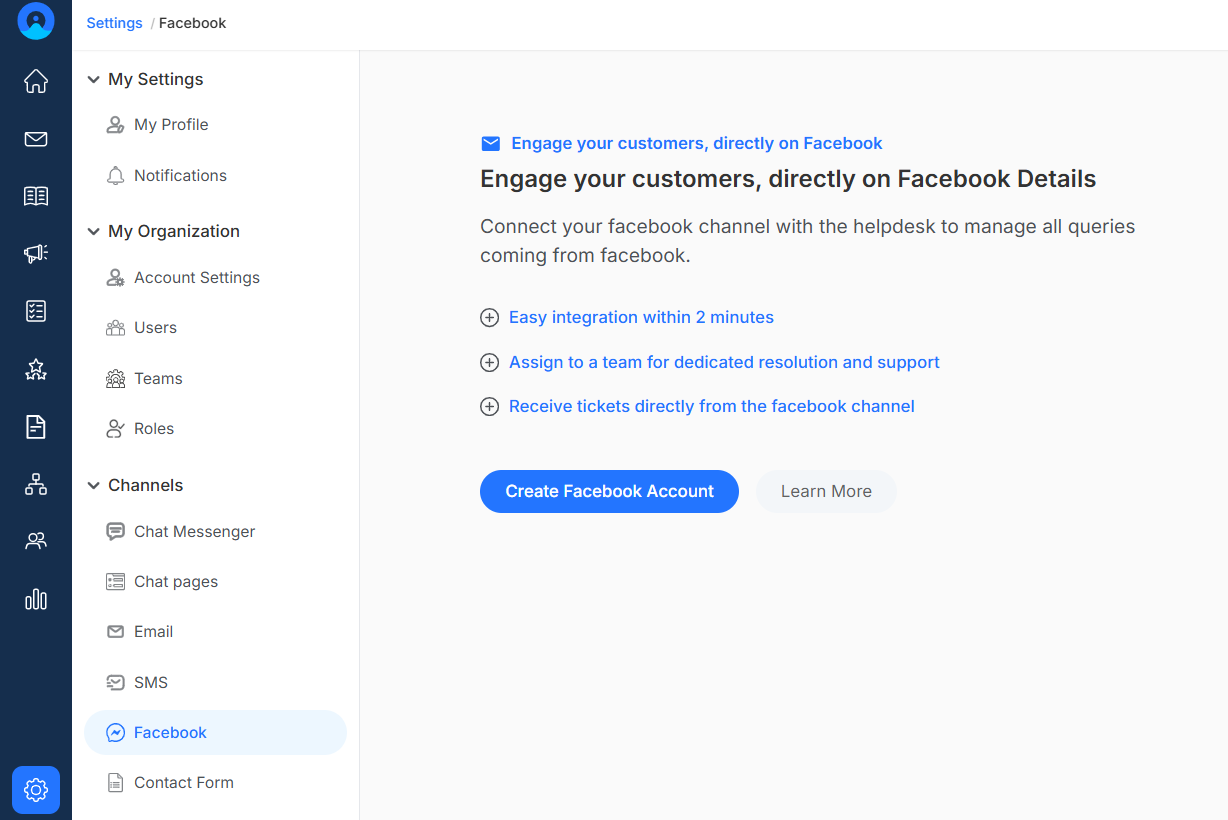
Connecting your Facebook Business page brings social media customer conversations directly into your team's inbox for immediate response. The integration prevents customer complaints from going viral by enabling quick professional responses.
Connect Google Business Page
To access Chat Pages Navigate to Settings > Channels > Google Business
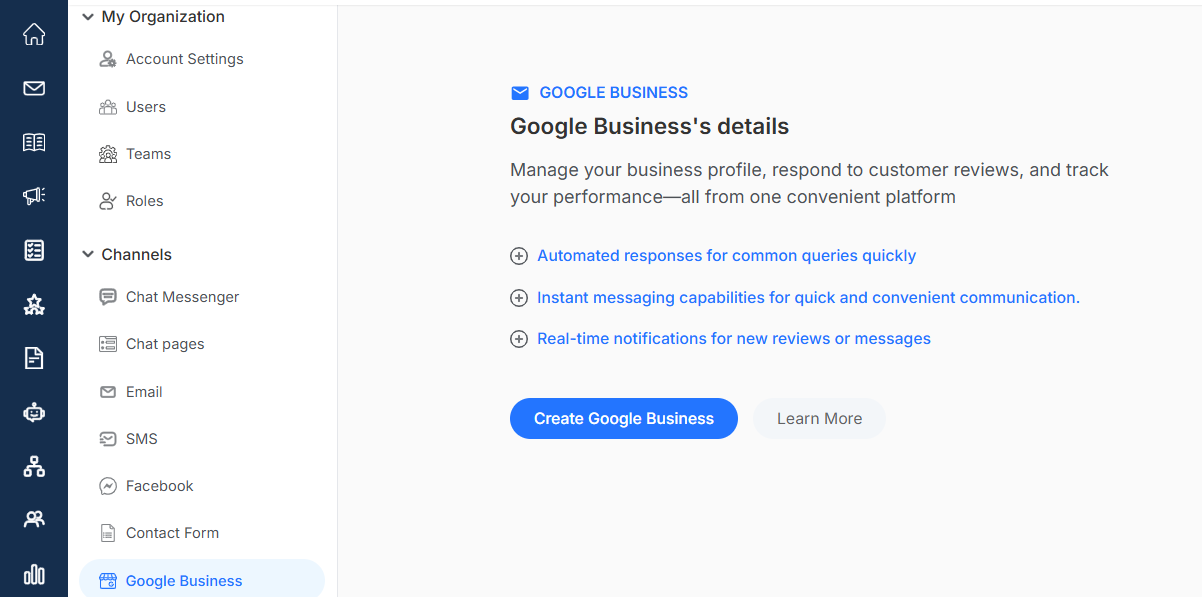
Google Business integration helps you manage your online reputation by centralizing reviews and customer inquiries from Google listings. Managing Google Business communications through your team inbox makes sure that no customer feedback is missed while maintaining online credibility.
Set up Contact Form
To access Chat Pages Navigate to Settings > Channels > Contact Form
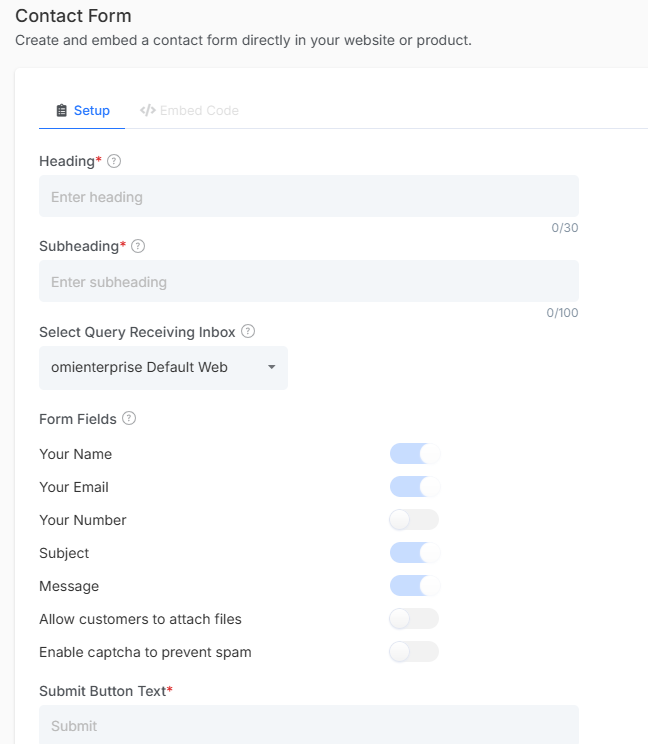
Contact forms provide a professional way for website visitors to reach your support team without requiring customers to leave the website. These forms can capture specific information you need for better support and automatically create organized tickets in your inbox for prompt response
Connect Live Chat Messenger
To access Chat Messenger Navigate to settings > Channels > Chat Messenger
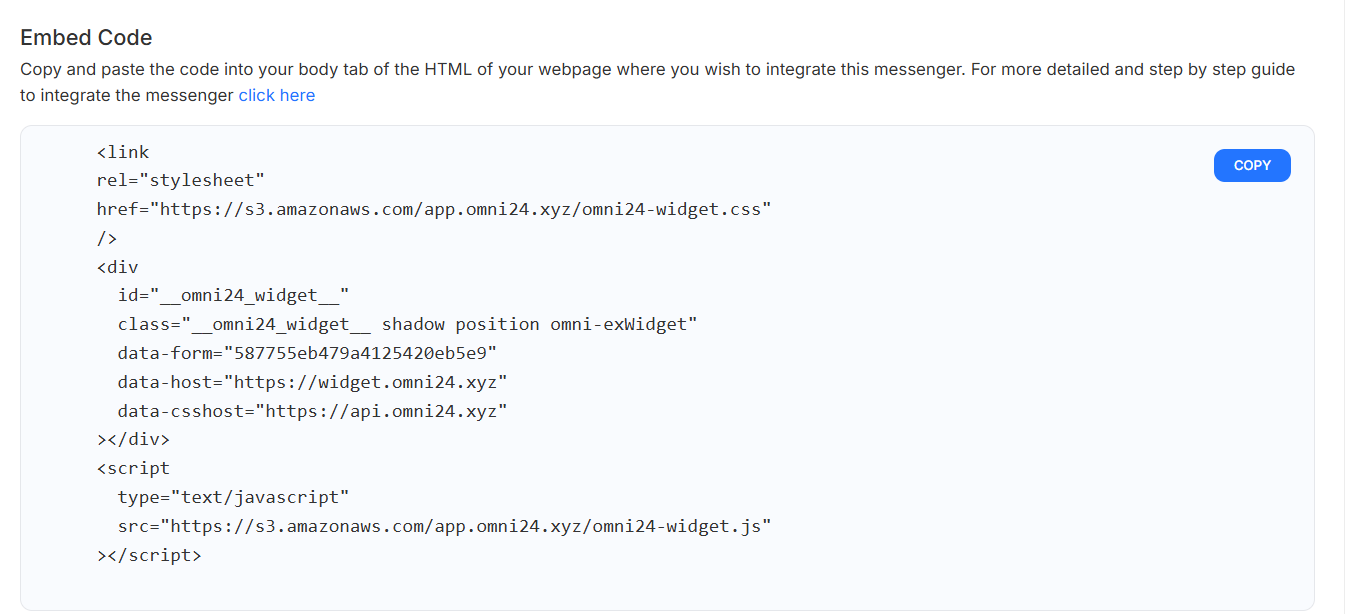
Live chat integration enables real-time customer support directly on your website through the inbox. Chat conversations automatically become part of your team's inbox for seamless handoffs between agents and maintaining complete conversation history.
Chat page
To access Chat Pages Navigate to Settings > Channels > Chat Pages
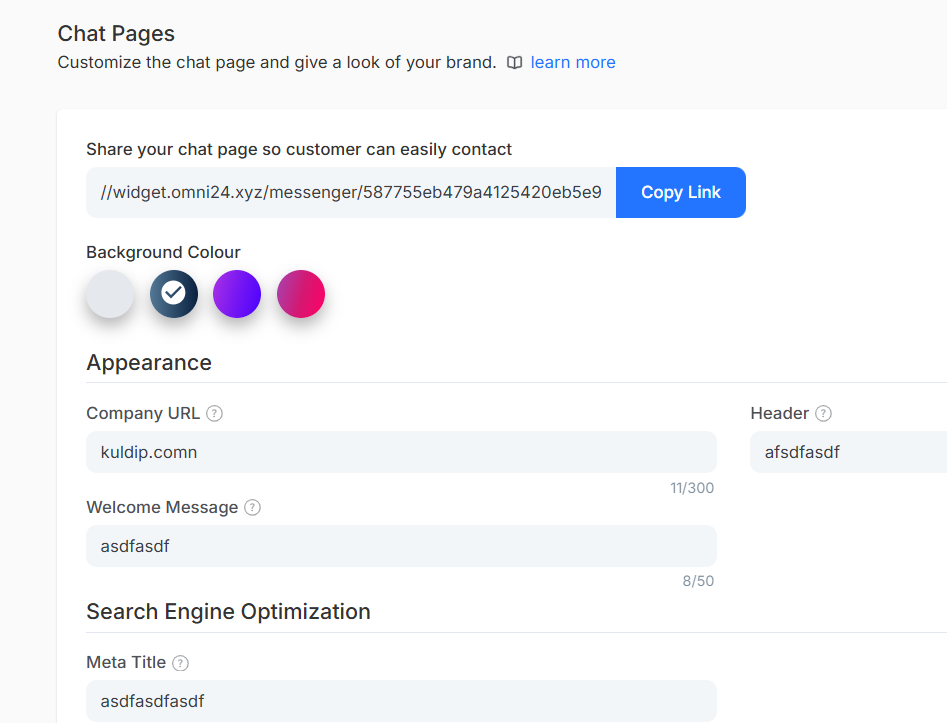
Chat Pages provide a dedicated, shareable link that lets customers start a conversation with your team instantly no website embed required. Simply share the link via email, social media, to give customers a direct line to your support team from anywhere.