
Customize your help center and give it a branded look with all the new customizing features. When customers land on your help pages, they should instantly know they're in the right place. Let's make your help center irresistibly helpful and beautifully branded!
To customize your help center, navigate to Knowledge Base > customization. Want to learn more about Knowledge Base basics? Click Here for the complete overview!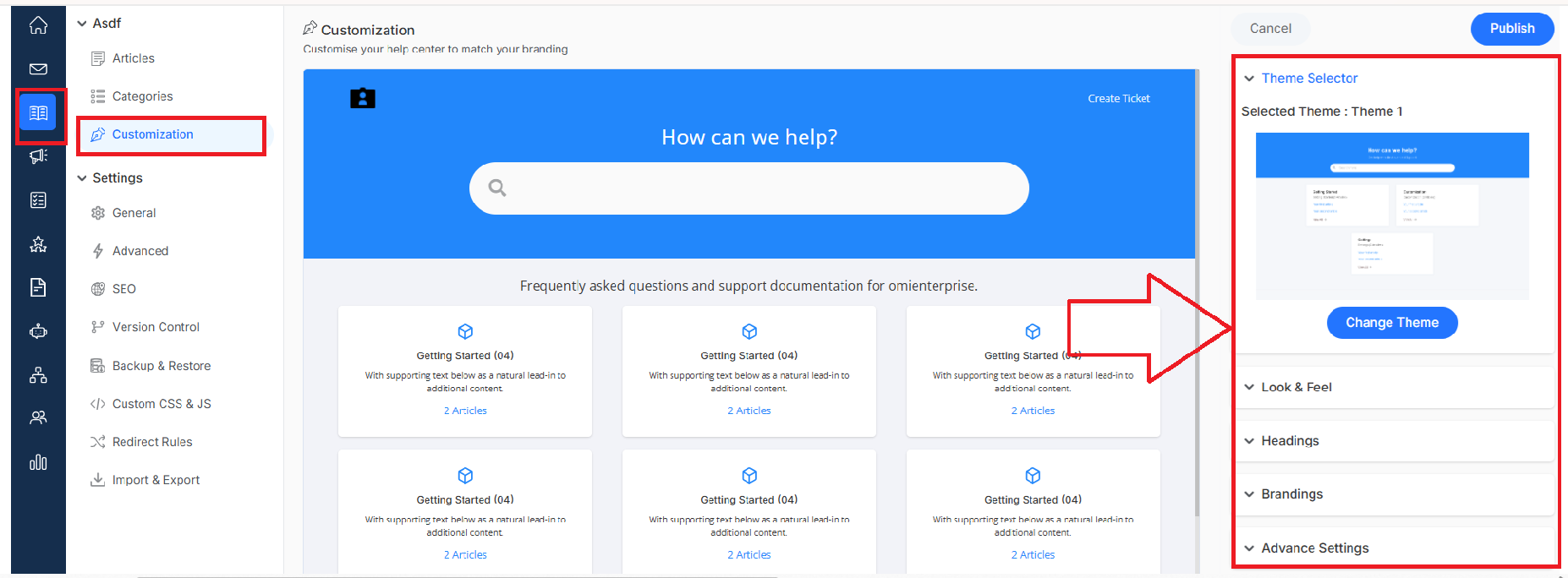
- Customize your Help Center with different types of themes and apply them according to your choice. Click on Change Theme and the theme menu will open
Theme Selector
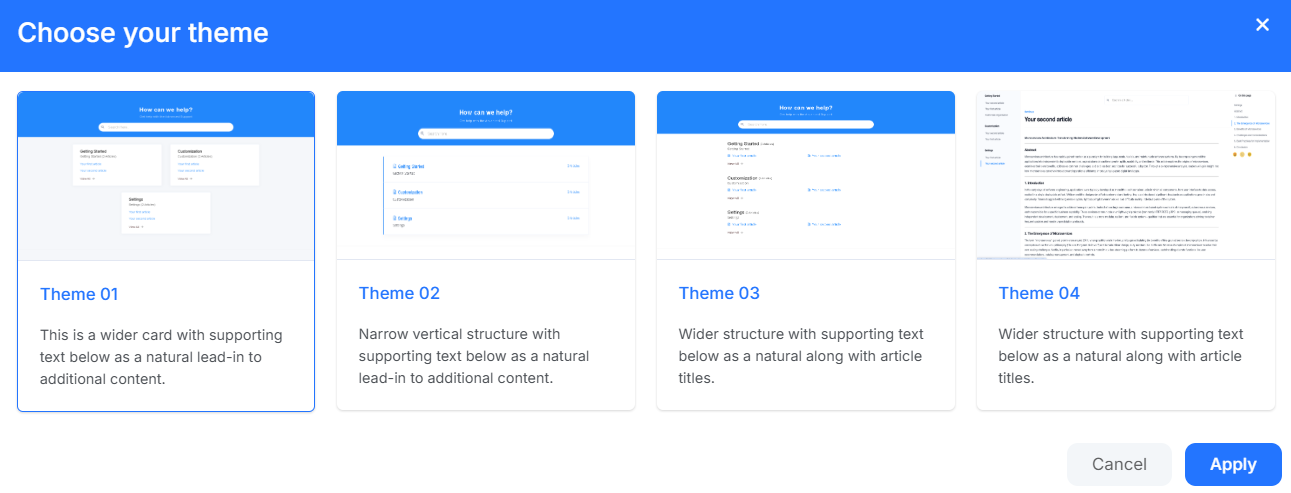
- Theme 1: A horizontal, wide layout with extra content space below the title. Perfect if you want to showcase lots of information and give plenty to explore.
- Theme 2: A clean vertical structure with supporting text below in a natural, flowing template. Great for guiding customers step-by-step through your help content in an organized way.
- Theme 3: A minimalist vertical theme without additional supporting content. Ideal if you need a clean, focused look that gets straight to the point.
Look And Feel
Transform your knowledge base into something that screams "you" with these powerful customization option:
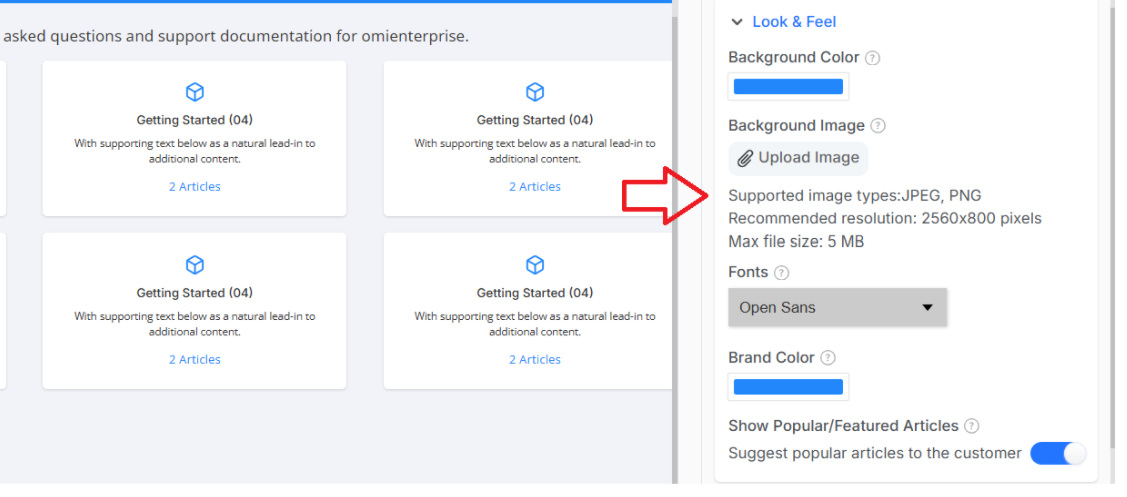
Looks and Feel covers:
- Background Color – Knowledge base background, especially the header, to match your brand colors perfectly.
- Background Image – A branded background image that makes your help center uniquely yours. It is recommended to use images up to 5MB, with a resolution of 2560 x 800.
- Font Selection – typography that matches your brand voice, whether that's modern or warm.
- Brand Colors – Your brand's signature colors throughout the help center so it feels like a seamless part of the brand experience.
- Featured Articles – Suggest your most popular articles to customers to help them find great answers faster.
Headings
Create welcoming text that makes customers feel at home:

Headings cover:
- Homepage headline: A homepage headline for a personalized look
- Home page subline: This will add a subline element to your home page.
- Search input text: This will add a placeholder in the search bar of your home page.
Branding
Make your help center yours, unmistakably yours
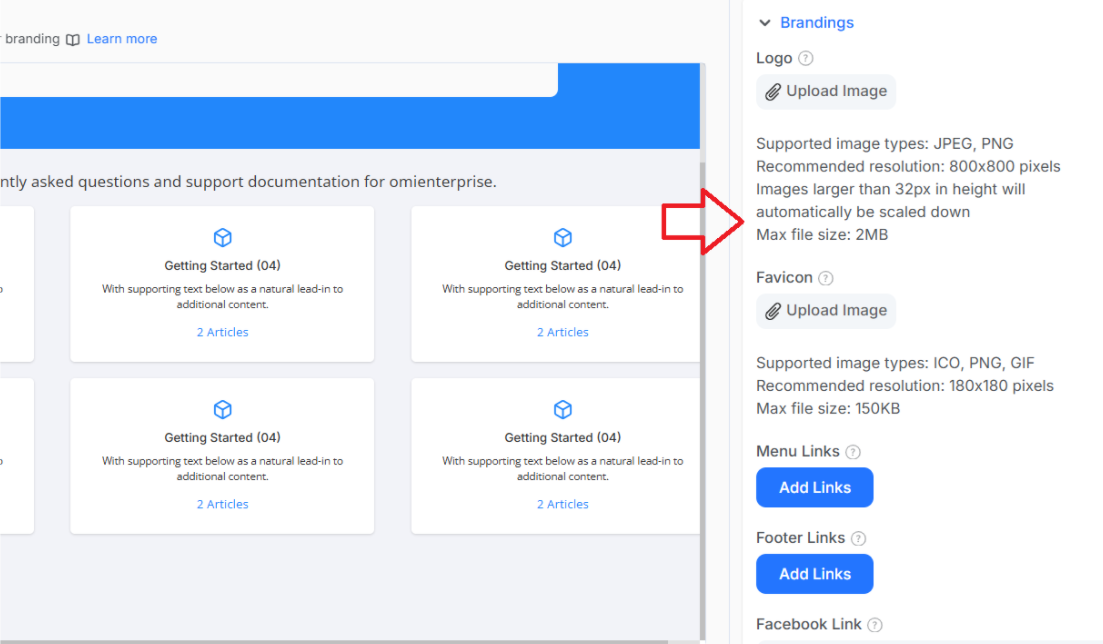
It Covers:
- Logo: Add your brand logo to the top-left of your help center so customers always know where they
- Favicon: A small logo that appears in browser tabs.
- Menu link: Attach the link of your menu in the help center to make it look professional
- Footer link: Specify a link that will be attached to the footer of the help center
- Social media links: Social media links that will be visible on your help center.
- Hide Omni Branding: button for hiding Omni branding from your knowledge base.
Advance Settings
Add interactive elements that make your knowledge base more engaging and interactive
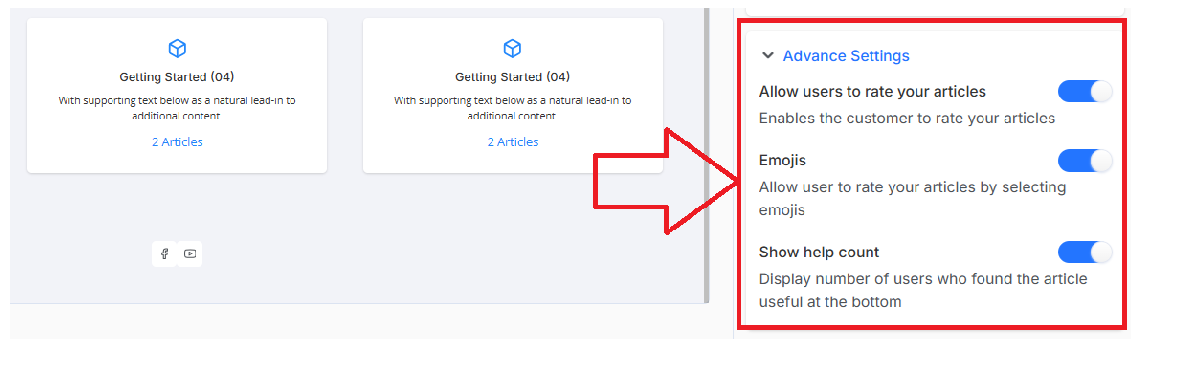
It covers:
- Allow users to rate your article: Let visitors rate your articles by giving you valuable feedback.
- Emoji Ratings: Enable emoji ratings on a 4-point scale rather than boring number ratings
- Helpful Counter – How many people found each article useful for social proof?
What's next? Let's keep building a knowledge base empire
- General Settings of Knowledge Base - Settings that make the knowledge base work smoothly
- Create and Manage Articles in Knowledge Base. - Learn how to create and manage articles for you customer