
You can easily create and manage categories of articles for your help center. Categorization helps to structure the articles efficiently. Let's guide you throughout the process of creating and managing articles.
Create A Category
Step 1: Start Organizing
Navigate to Knowledge Base > Categories > Create to start structuring your content
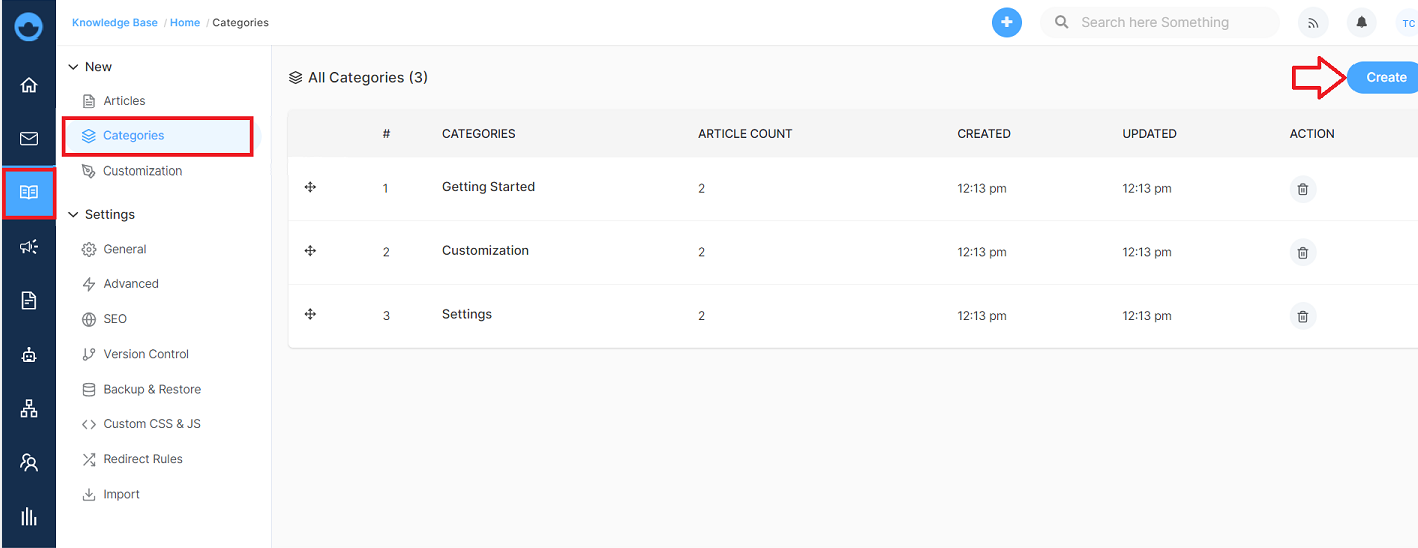
Step 2: Build Your Category
A friendly pop-up that will appear asking for essentials to make your category logical. The fields required are:
Name - Choose a clear title that instantly tells customers what they find inside. (Example: "Getting Started," "Billing Questions," or "Troubleshooting" – make it obvious and helpful)
Description - a concise overview explaining the type of content users will find within.
Icon - A visual symbol that represents the category's theme for easier identification.
Once done, click on Create.
Manage Categories Of Your Article
Click on the category and you can see all the articles assigned under the particular category. also some of the SEO settings are also available under the Search Engine Optimization category.
SEO Settings:
SEO Settings optimize your knowledge base category for search engines to help customers find your help center through search platforms. Proper SEO increases organic traffic and improves accessibility.
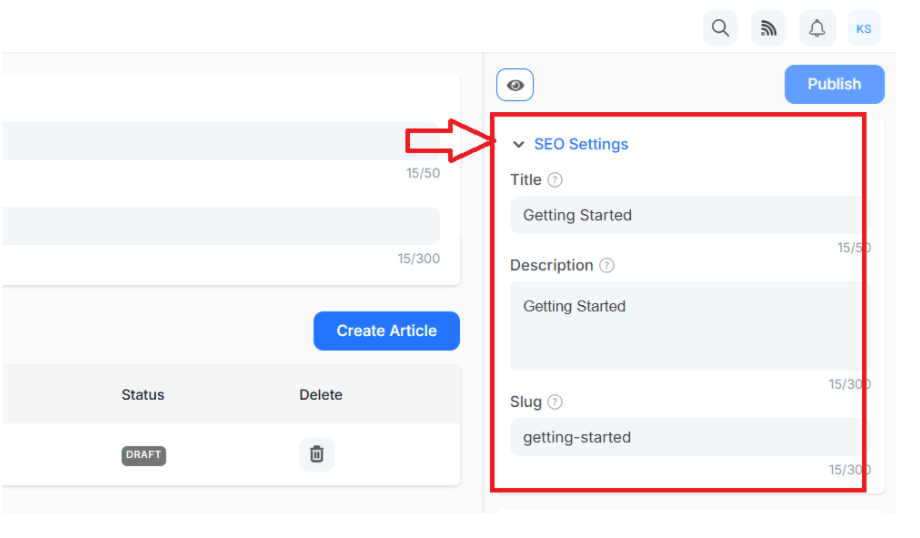
- Title: Create a search-optimized title (up to 70 characters) that includes relevant keywords.
- Description: A compelling meta description (limit up to 150 characters) to summarize your knowledge base for search results.
- SLUG: Customize the URL slug (up to 200 characters) to create clean and SEO-friendly article links.
OpenGraph Settings
OpenGraph Settings control how your help center appears when shared on social media platforms. Optimized social sharing settings help to increase engagement and drive more traffic.

- Title: Set a title (up to 70 characters) specific to social media that captures attention when shared.
- Description: Craft an engaging description that encourages social media users to click through.
- Image: Upload a visually appealing image (JPEG, 1200×633 pixels, max 5MB) for social media posts.
Note: know more about articles from here. Learn more
Delete A Category
Navigate to Knowledge Base > categories > delete. Click on the dustbin icon to delete a library
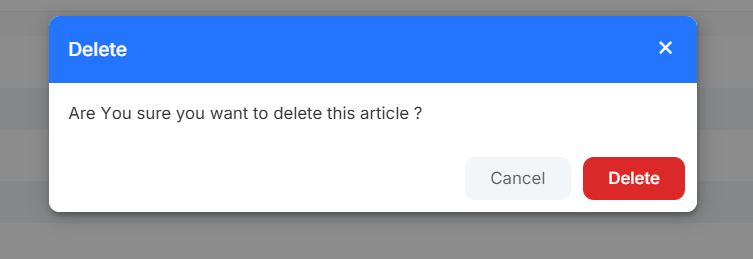
A confirmation pop-up will appear to delete it from the library permanently