
Omni24 allows you can bring in content from other platforms and can seamlessly export everything to where you need it best. This article will guide you throughout the process of importing and exporting your knowledge Base.
Import Knowledge Base
You can import knowledge Base data from any external source into Omni 24 in just simple steps.
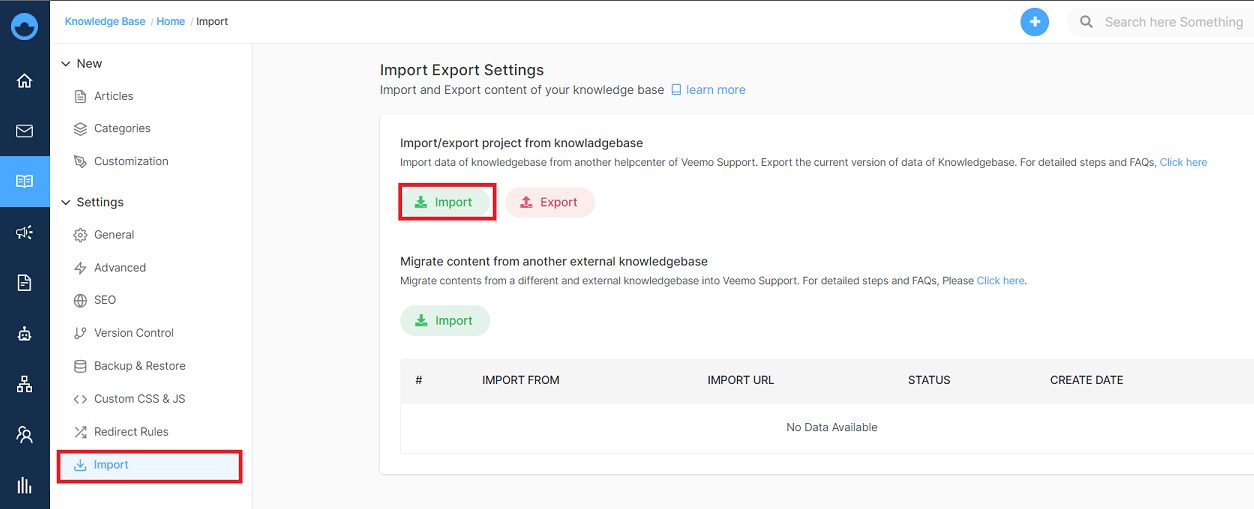
- Navigate to Knowledge Base from the main dashboard menu
- Under Settings, click on import.
- Choose the external data source from your local drive
Export Knowledge Base
You can export the currently used knowledge Base Data in your local drive in CSV format by
- Clicking on the Export button
- The CSV file will automatically start downloading.

Migrate Knowledge Base Data From External Knowledge Base
Migrate knowledge base data from external sources to your Omni24 account by just following these simple steps.
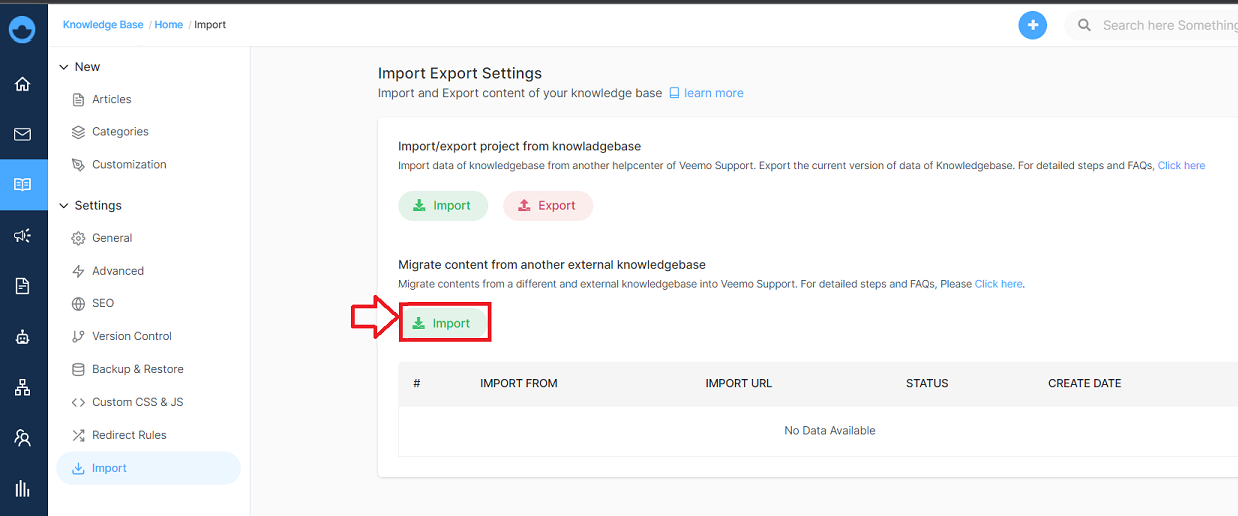
Step 1:
Click on import under migrate Knowledge Base.
Step 2:
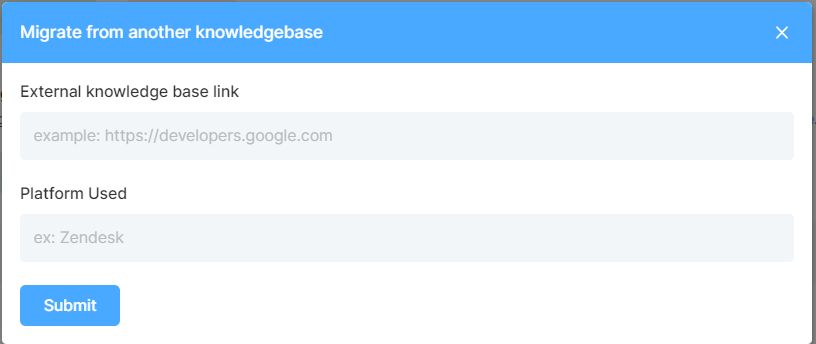
A pop-up appears to migrate from another knowledge Base where you have to enter the required field.
Fields required are:
- External Knowledge Base link - enter the link of the external knowledge Base.
- Platform Used - enter the name of the platform for importing the knowledge Base.
You can view the history of migrating the knowledge Base in one place.

What next? Since your knowledge base content is now exactly where it needs to be. Let's keep optimizing help center:
- General Settings of Knowledge Base - Fine-tune how your knowledge base works for everyone
- Create and Manage Articles in Knowledge Base. - Learn how to create and manage articles