
Never let important customer conversations slip through the cracks again by setting up a workflow that can automatically change the status of conversations when they do not get a response for a long time.
Imagine your team is swamped with requests, and a repeat customer's message gets buried. Instead of turning it into a bigger problem, with a specific workflow condition, it can change the status to high priority.
Note: Since how to create a basic workflow for streamlining repetitive tasks is already covered so here we will only use the case
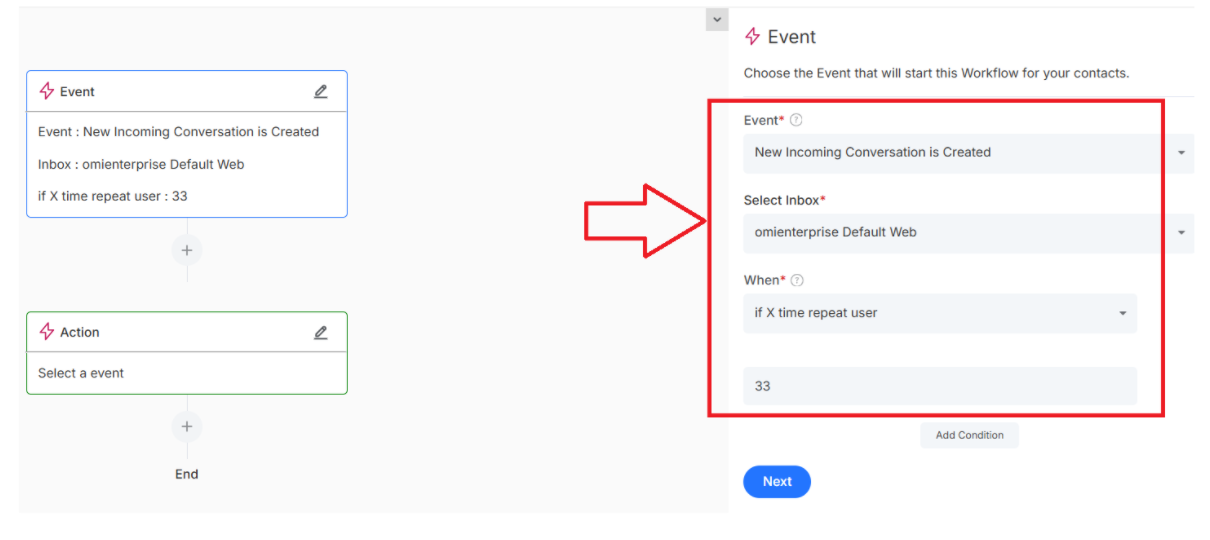
Step 1: Set Your Smart Alert
Here is where you teach your workflow when to work:
- Under Trigger, choose Incoming Conversation as your entity
- Pick the specific inbox you want to monitor
Step 2: Trigger condition
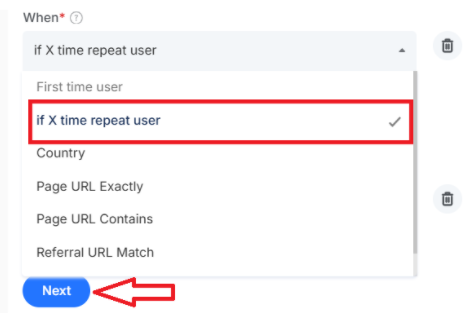
- Set your trigger condition to activate when “a repeat user” has not gotten a response for more than “x number of days”
Click here to know more about the Team inbox
Note: you can set more than one condition in a workflow by clicking on the Add condition and selecting AND/OR
Step 3: Take Action
Now it's time to set what your workflow will do based on the condition
- Under Actions, change the status of the conversation to open
Note: for different conversations, you can set it status level
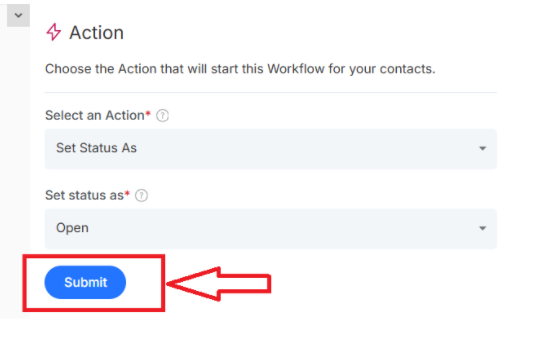
Hit Submit and Publish. Congratulations, you have just created an automation that ensures no conversation will go unnoticed for too long