
Connecting Pipedrive with Omni24 brings your sales pipeline directly into customer conversations, allowing you to manage deals, update contacts and track activities without switching platforms.
Pipedrive is a sales-focused CRM designed to help teams visualize their pipeline and close more opportunities with workflows.
Connecting Pipedrive CRM with Omni24
Let's get your Pipedrive account connected with Omni24 to start managing your sales data right from your conversations. The process is straightforward and quick.
Step 1: Go to Settings > API & Integrations in your Omni24 dashboard. Locate Pipedrive from the available integration options
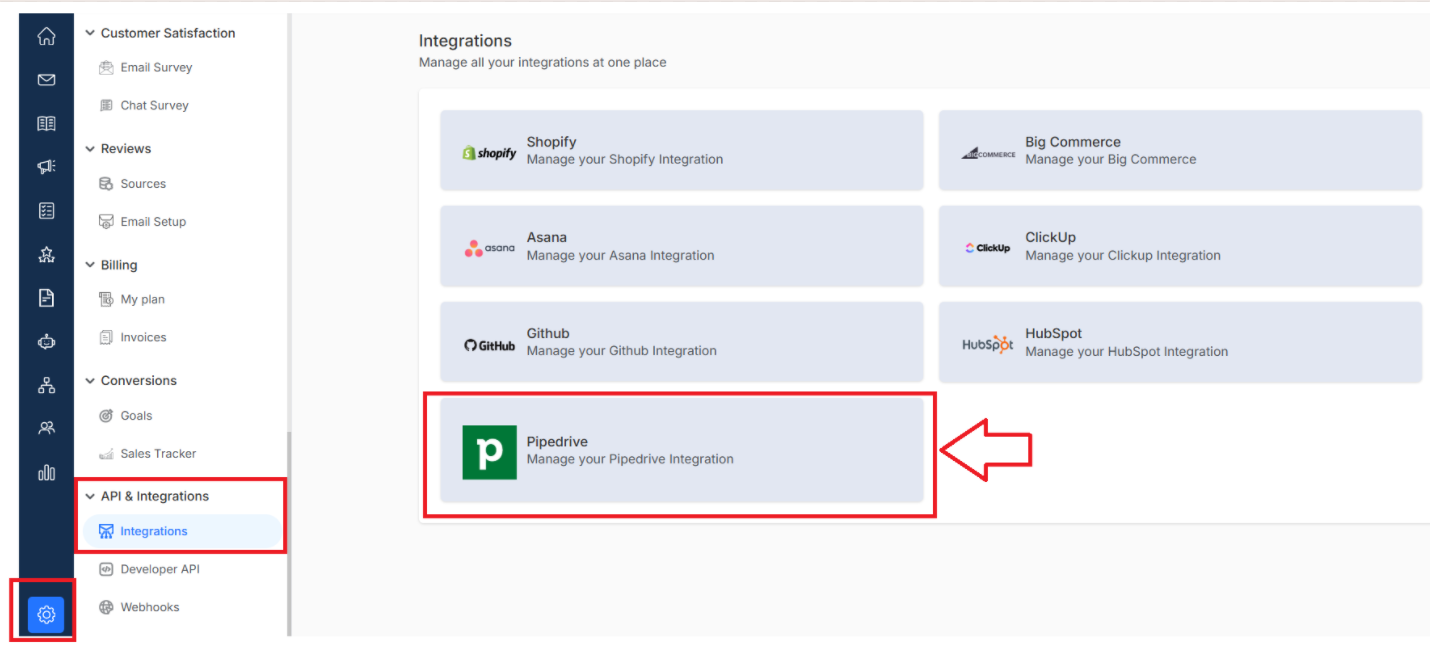
Step 2: Click Connect Pipedrive to start the linking process
Step 3: Authorize the connection by granting the required permissions
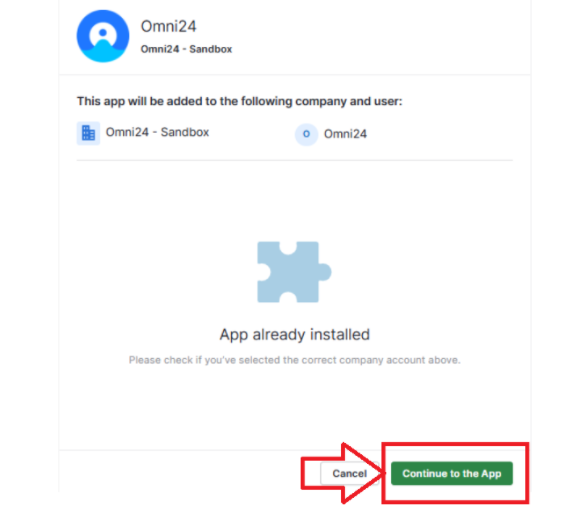
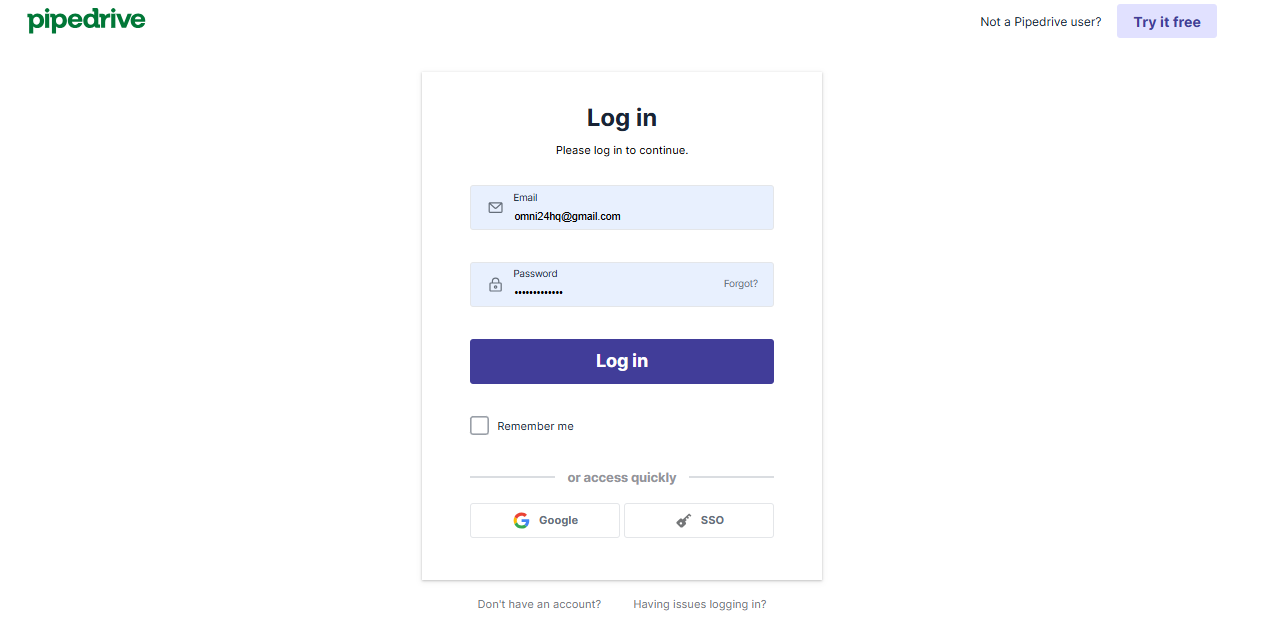
Step 4: Enter the login details of the Pipedrive account you'd like to integrate when prompted
Note: If you do not have any existing Pipedrive CRM account, you can create for here also
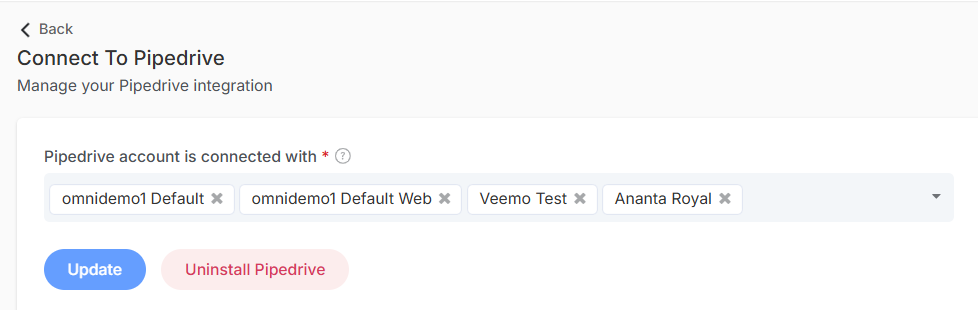
Your Pipedrive CRM is now integrated with Omni24, and information and sales data will sync between both platforms.
Creating a New Person from Omni24
When engaging with a prospect who does not need to exist in Pipedrive, you can add them directly from the inbox to keep workflow uninterrupted and CRM up to date.
Note: Email addresses serve as the primary matching identifier. If a contact reaches out via sales@company.com, but their Pipedrive profile uses info@company.com, then the records won't sync together.
Step 1: Open the relevant conversation in your Omni24 Inbox
Step 2: Find the customer information panel on the right side
Step 3: Click the Create Person or ‘+’ button located under the Pipedrive Profile section
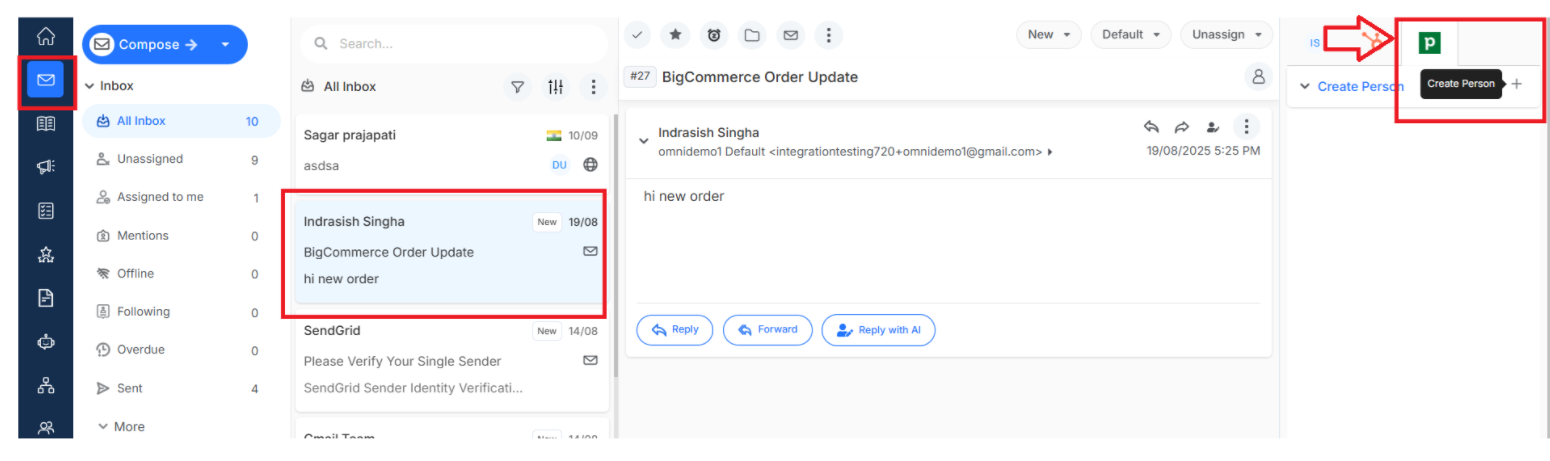
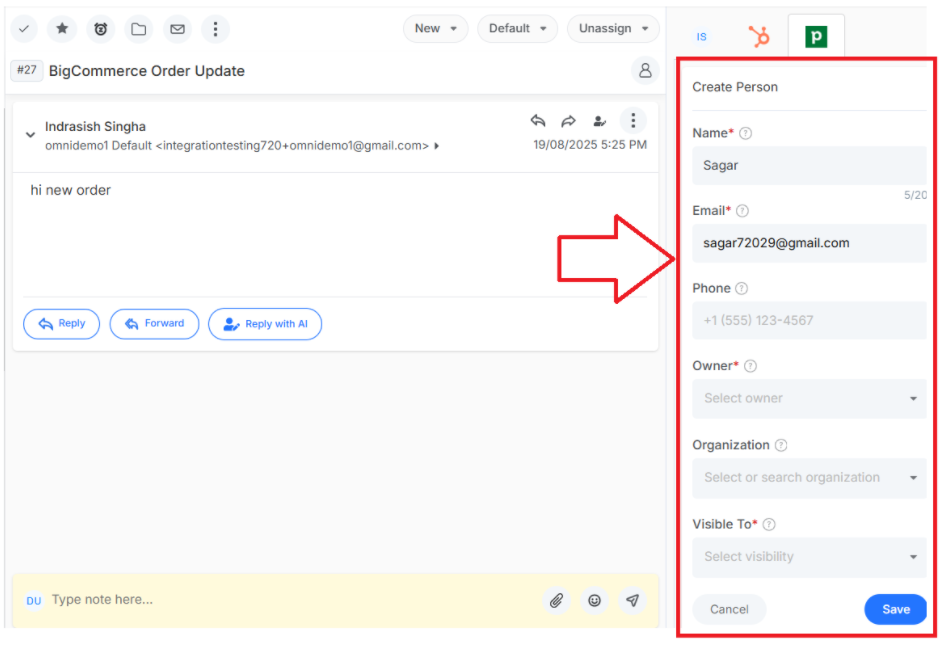
Step 4: A form will appear with these fields:
-
- First Name and Last Name - Specify Prospect's given name for easy identification
- Email - Primary email address for profile creation in Pipedrive and communication
- Organization- Specify a business or organization name the person is associated with
- Owner- select who is the owner of the contact or person
- Phone - Primary contact number for easy communication
- Visible to - select to which team member the person profile will be visible
Complete the relevant fields and click Save to sync person details in Pipedrive.
Note: Their information will display in the conversation sidebar immediately.
Updating Existing Contacts
Modify contact details directly in Omni24, and those changes will sync to Pipedrive automatically in real-time.
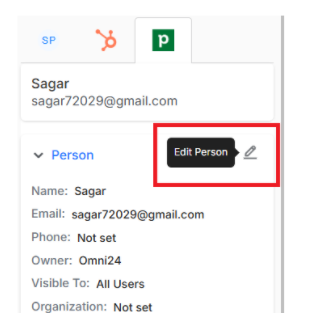
- Open any conversation
- Click the person’s name in the sidebar and click on the edit icon beside the person's information
- Edit the necessary fields and click Save.
Your changes appear in Pipedrive instantly.
Creating Organization Profiles
You can build organization records directly from customer conversations, making it simple to structure your business database while actively qualifying leads or handling inquiries.
Step 1: Open a conversation in your Omni24 Inbox
Step 2: Scroll to the Organization section in the right sidebar under the Pipedrive profile
Step 3: Click on the create icon, which is your Create organization button
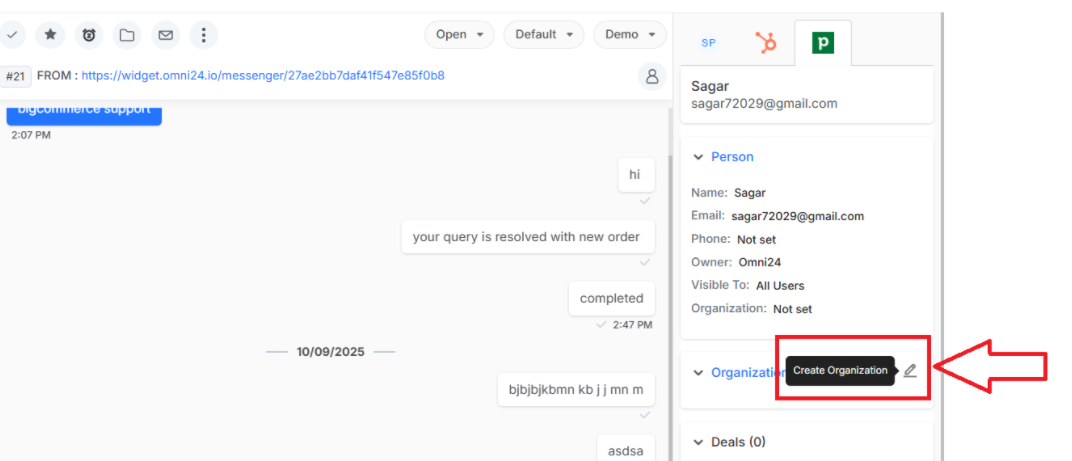
Step 4: Fill out the organization form:
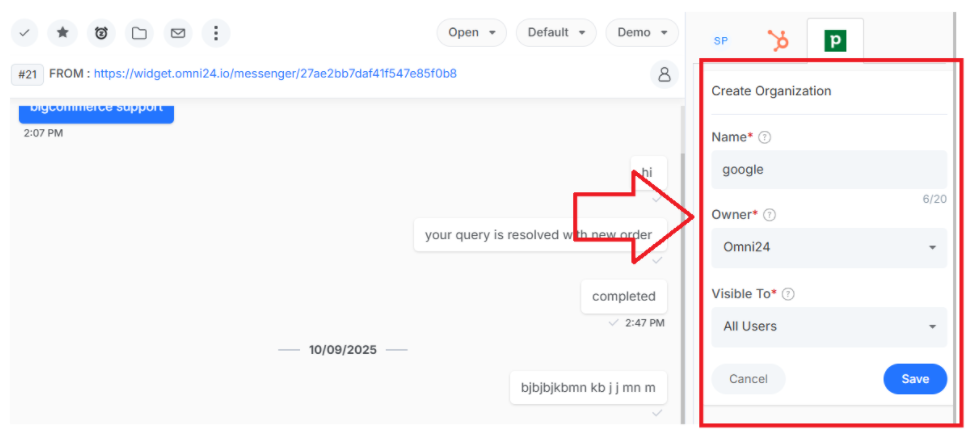
- Name - Official organization name (required)
- Owner - Select the team member responsible for this organization (required)
- Visible To - Choose visibility settings, i.e is either only the assigned owner can view or all users

Click Save to finalize the organization. The organization now exists in Pipedrive.
Adding Deals from Conversations
When you identify a sales opportunity while chatting with a prospect? Capture it immediately by creating a deal within the conversation so that no opportunity is missed.
Step 1: Open the prospect's conversation in your Omni24 Inbox
Step 2: Locate the Deals section in the right sidebar
Step 3: Click on the + button, i.e, the Create Deal button

Step 4: Fill in the deal information:
- Deal Name - Clear opportunity description
- Sales Pipeline - Choose the appropriate pipeline
- Deal Stage - Select the current pipeline stage in which the opportunity belongs
- Expected Close Date - Anticipated closing timeline for the deal
- Deal Amount - Estimated deal value for easy revenue forecasting

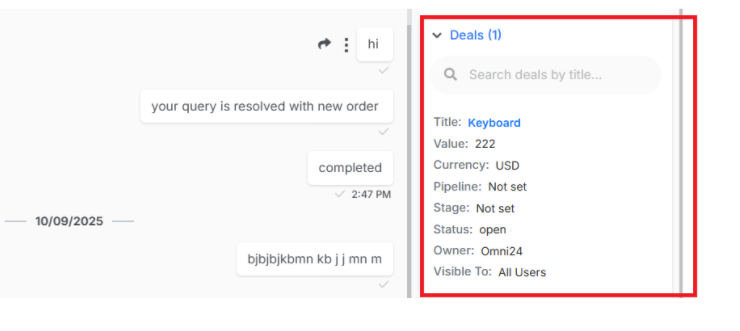
Click Save to add the deal. Your deal is now visible in Pipedrive for seamless opportunity tracking across workthe flow.
In omni24
Creating Activities
Activities help you document conversations, schedule follow-ups, and plan next steps—all while keeping your activity history synchronized between Omni24 and Pipedrive.
Call Activities
Call activities let you log completed phone conversations with prospects, ensuring your communication history stays complete and accessible.
Step 1: Open any conversation in your Omni24 Inbox
Step 2: Go to the Engagements section in the right sidebar
Step 3: Click Create Engagement or the + button
Step 4: Select Call from the Type dropdown and enter all the details
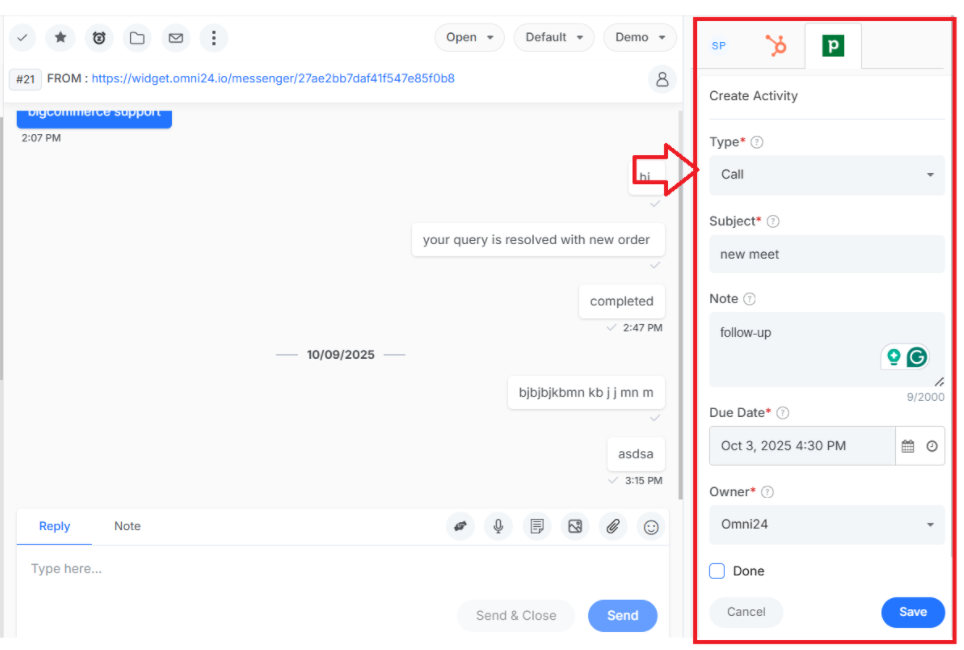
- Subject - Brief description of the call purpose
- Note - Detailed notes about the conversation or call agenda
- Due Date - Schedule when the call should happen
- Owner - Assign who is responsible for this call
- Done - Check this box if the call has already been completed
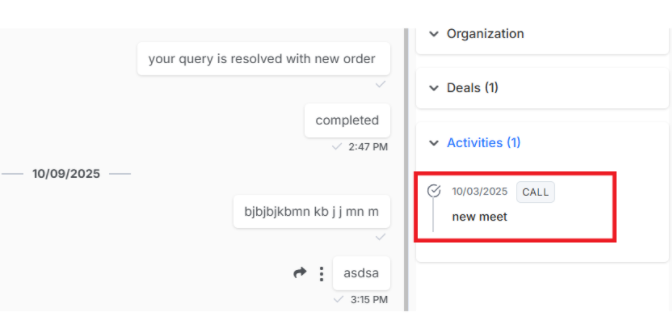
Click Save and your call activity is now logged in both Omni24 and Pipedrive
In Omni24,
Meeting Activities
Meeting activities help you schedule video calls or demos with prospects, keeping everyone aligned on upcoming appointments.
Select Meeting from the Type dropdown and details :
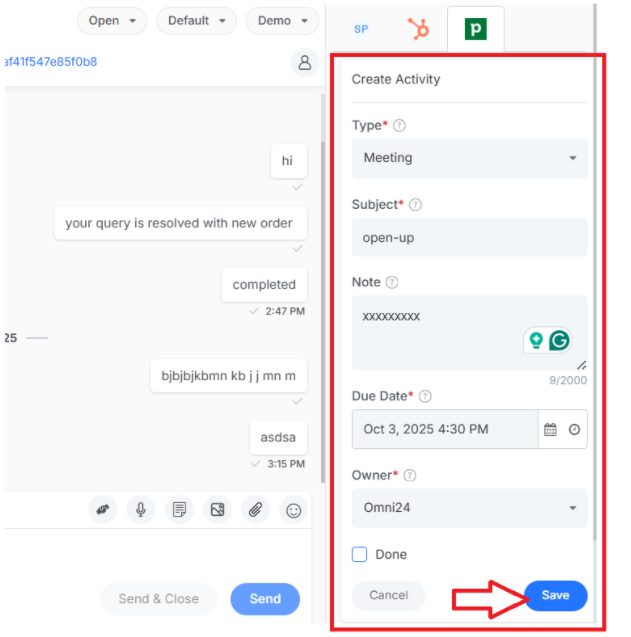
- Subject - Meeting topic or objective
- Note - Meeting agenda, attendees, or preparation notes
- Due Date - When the meeting is scheduled
- Owner - Team member responsible for the meeting
- Done - Mark as complete if the meeting has already occurred
Click Save. and find all meetings are synced in Pipedrive
In Pipedrive
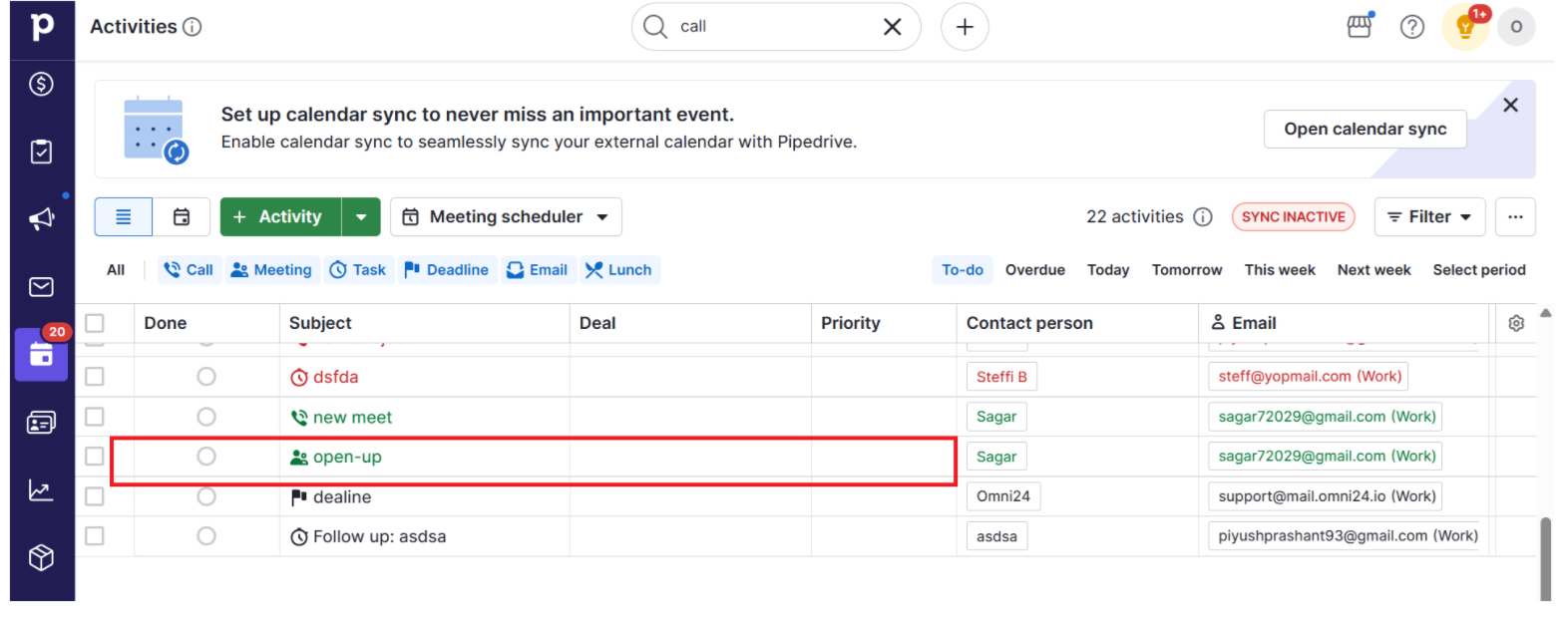
Task Activities
Task activities create actionable to-do items for follow-up or any sales action that needs to be completed by a specific deadline.
Select Task from the Type dropdown and fill in:
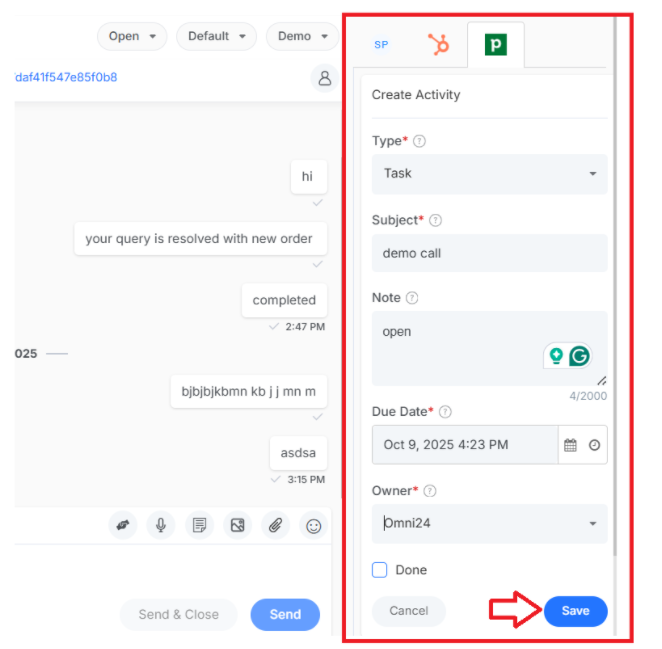
- Note - Additional context or instructions
- Due Date - Completion deadline
- Owner - Person assigned to complete the task
- Done - Check when the task is finished or not
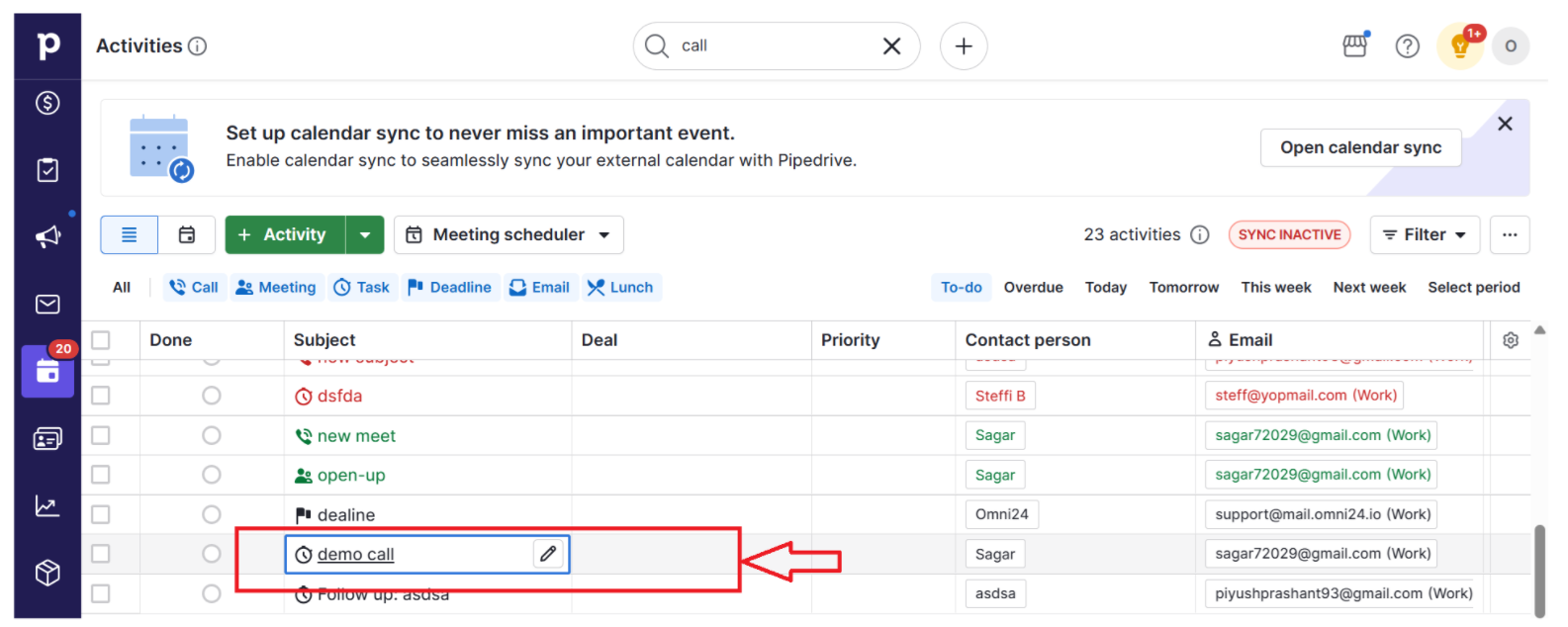
Click Save, and all tasks are now synced in Pipedrive.
In Pipedrive
Deadline Activities
Deadline activities mark important milestones in your sales process to help you track time-sensitive deliverables or contract dates.
Select Deadline from the Type dropdown and enter:
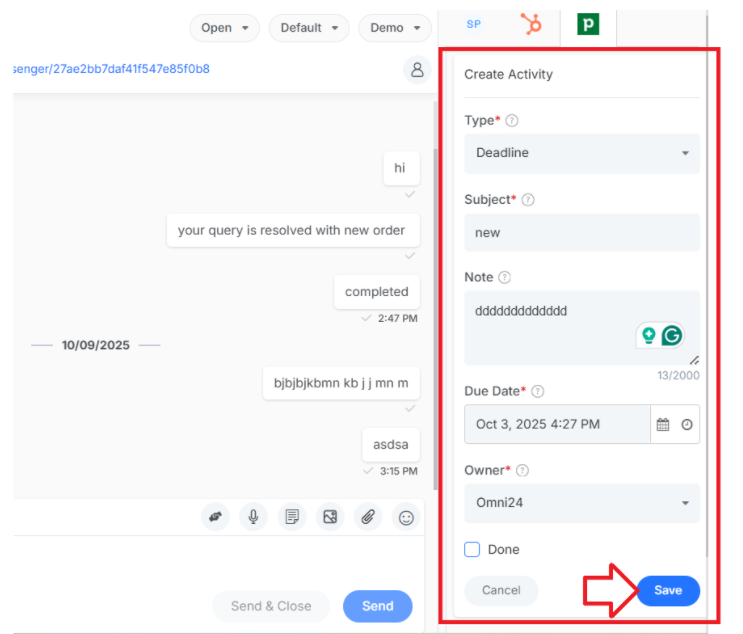
- Subject - What deadline does this represent
- Note - Context about why this deadline matters
- Due Date - The deadline date
- Owner - Who needs to be aware of this deadline
- Done - Mark complete when deadline is met or passed
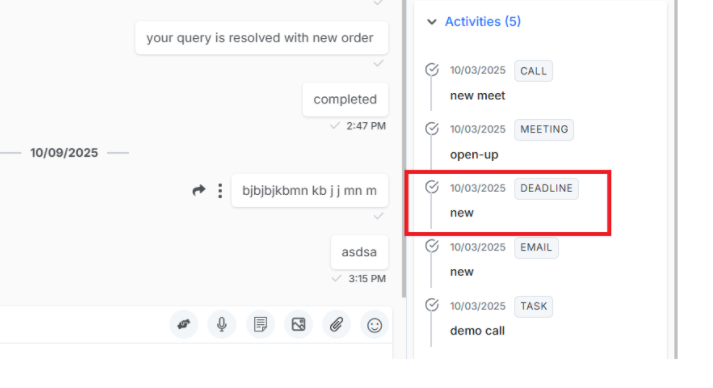
Click Save and your deadline is now logged in both Pipedrive.
In Omni24,
Email Activities
Email activities log reminds you to send important follow-up emails, maintaining a complete record of all prospect communications.
Select Email from the Type dropdown and complete:
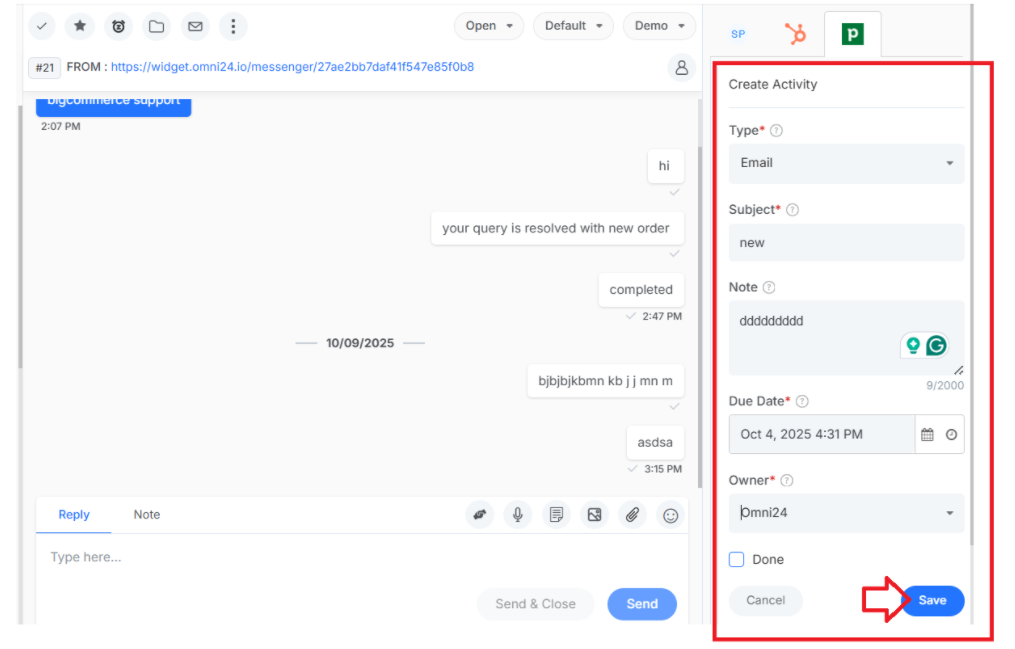
- Subject - Email subject line or purpose of the email
- Note - Email content summary or key points to cover
- Due Date - When email should be sent (required)
- Owner - assign an agent who will be sending the email (required)
Click Save and your email is now logged in both Omni24 and Pipedrive
Lunch Activities
Lunch activities help you schedule informal meetings, which are often great opportunities for relationship building with key prospects.
Select Lunch from the Type dropdown and fill in:
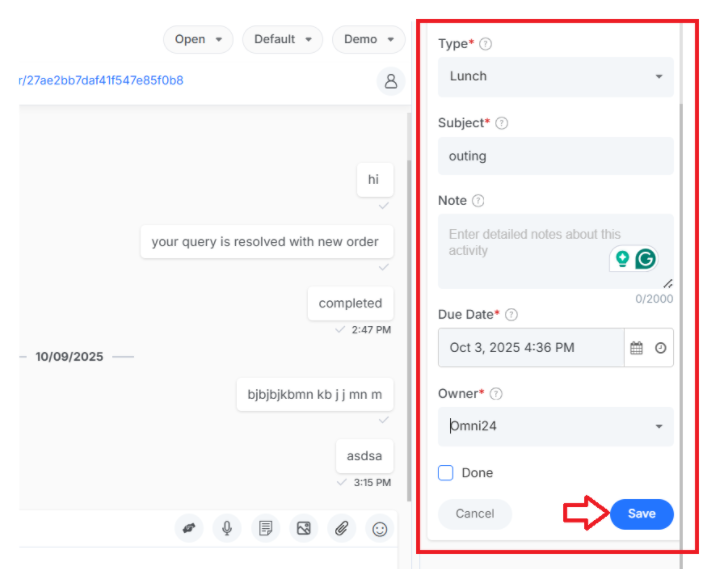
- Subject - Purpose of the lunch meeting (required)
- Note - Restaurant location, attendees, or discussion topics
- Due Date - When lunch is scheduled
- Owner - Who is organizing the lunch
- Done - Mark complete after the lunch occurs
Click Save and your lunch activity is now synced in both Omni24 and Pipedrive.
