Omni24 helps to create In-app surveys for collecting real-time responses directly in the application while users are actively engaged with the product. Let's understand the complete process of building, customizing and deploying surveys that appear within the app interface.
Building In-App Survey
Step 1: Navigate to the survey section > create survey > select In-App survey

Step 2: Set the name of the survey, select the folder and select the predefined template for the list
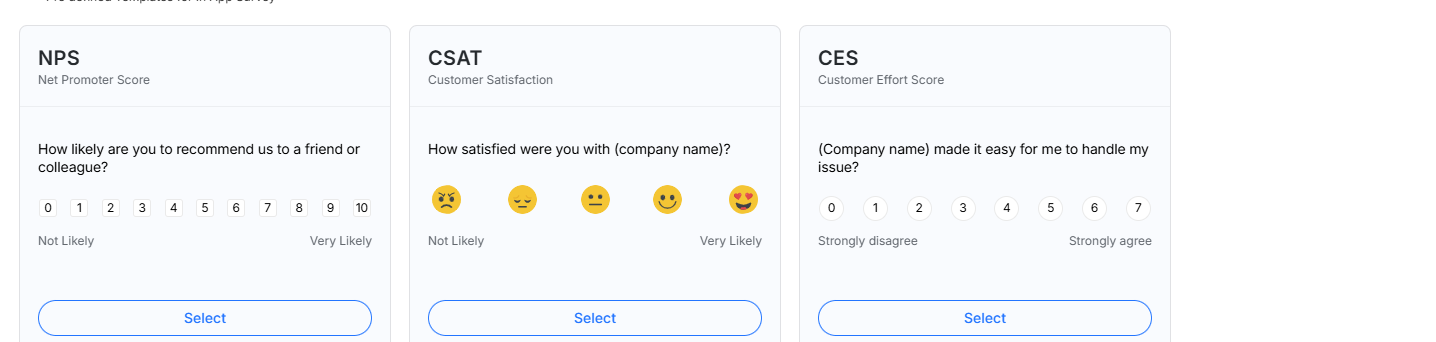
Once done, click on the Build from Scratch to start designing the survey
Design & Customize Survey
Step 1: Customize and design your survey by navigating to the “design section.”
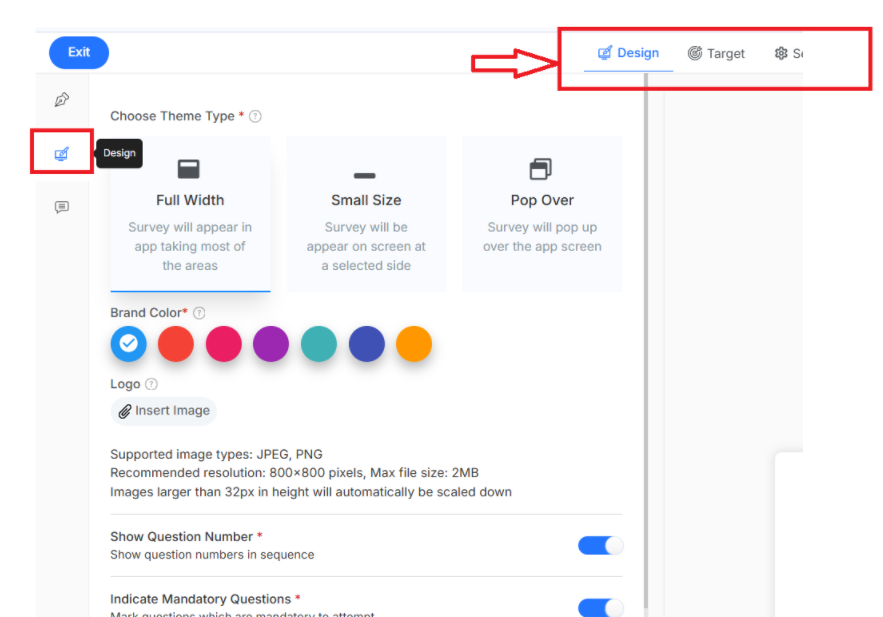
There are various customization options available to make your In-app survey more engaging and match your brand:
- Choose Theme Type: Select survey display format like full-width, small size or pop-over.
- Brand Color: Customize survey color scheme with brand-specific colors.
- Logo: Upload the logo for brand consistency in the survey interface.
- Show Question Number: indicators for each survey question for easy monitoring
- Indicate Mandatory Questions: Mark mandatory questions with visual indicators
- Show Progress Bar: For survey completion, display a visual progress indicator.
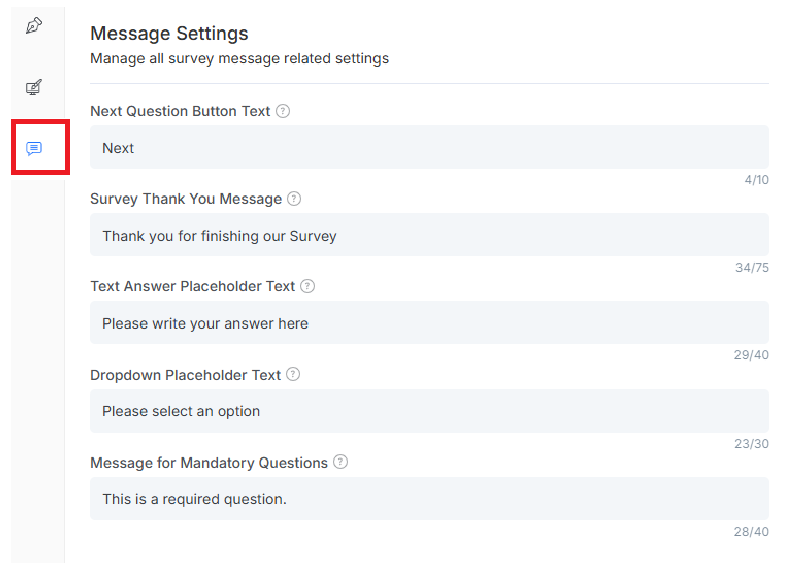
Step 3: Click on the message settings from the left navigation menu for the survey. It allows you to change the text of your survey button for language flexibility
Step 4: Move to the target tab from the top navigation menu for targeted response
Control when and where your in-app survey appears to users based on specific conditions and behaviors.
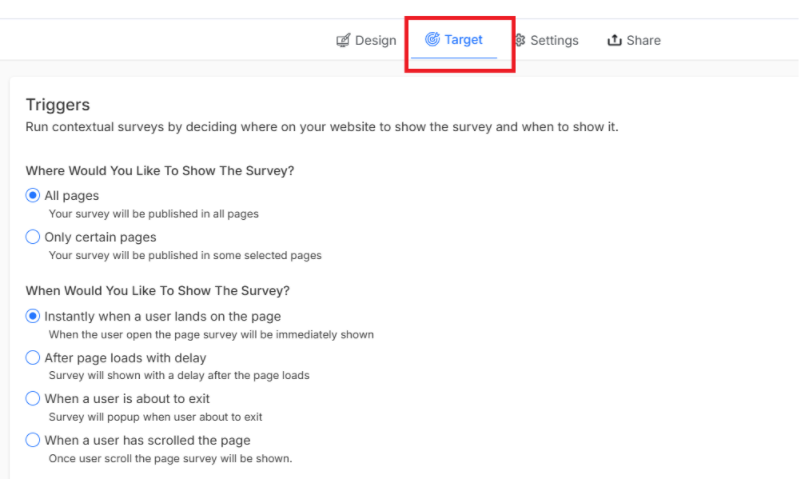
Different trigger options available are:
- Instantly, when a user lands on a screen, it will trigger the survey as soon as your user lands on the screen
- After screen load with delay: Set the delay time so the survey is displayed after a delay on the page.
- When a user is about to exit, a Survey will pop up just before the user is about to exit
- When a user has scrolled the pages, when the user scrolls the page to a certain percentage survey appears
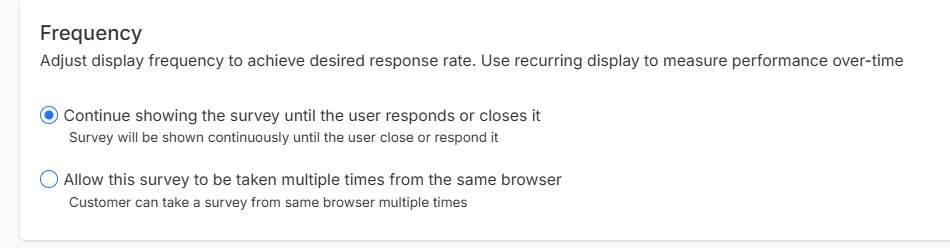
Frequency
You can adjust your survey frequency to run a single In-app survey regularly. If you want to allow your customers to complete the survey multiple times, select the condition.
Note: By default, your survey will be shown only once for a respondent
Launch a Survey
With Omni24, you can easily launch surveys straight from your dashboard. Two different ways you can launch your In-App survey:
- Sharing Installation Instructions
- Manual installation with code snippet
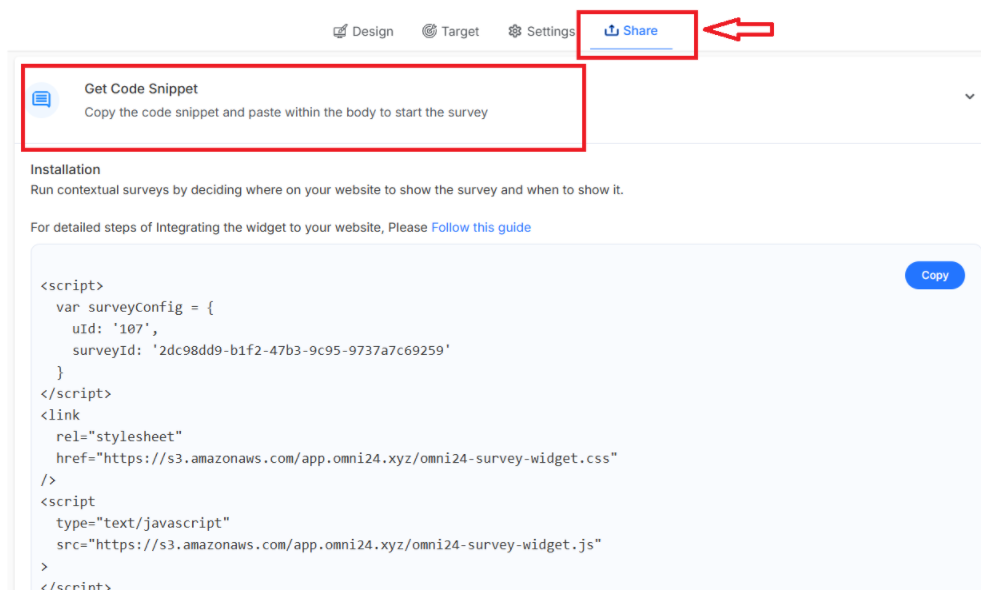
Manual Installation with Code Snippet
- Copy the survey code for manual installation
- Paste the tracking code into all the Apps you want to launch surveys on.
- Insert the tracking code at the bottom of the <body> part.
Share Installation Instruction
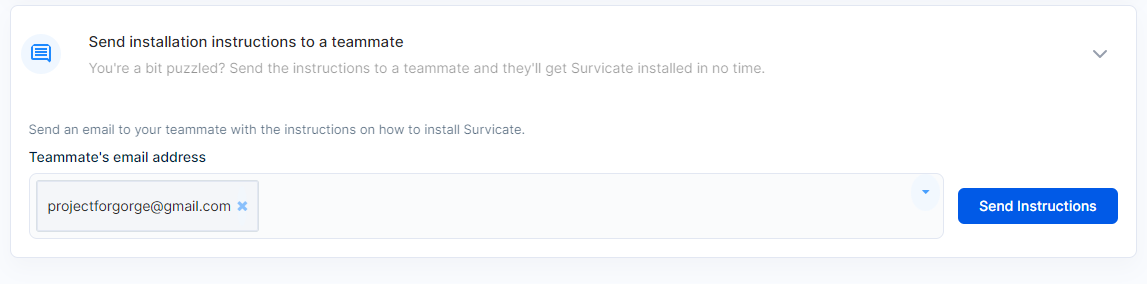
When someone else is managing your website, you can send them an email followed by instructions. They will receive a link with the installation documentation in no time.
- Move to the Share section under the created survey
- Select the email address to which you want to send the instructions.
- Once done, click on send instruction