
Articles in a knowledge base are structured documents that contain organized information, FAQs or solutions to help find answers to common questions and resolve issues within a self-service system. This article will give you all about creating and managing articles.
Key Benefits of Creating Articles
Benefits for Customers:
- Access immediate answers 24/7 without waiting for agent support through a searchable database of solutions.
- Find step-by-step guides and tutorials with visual aids for better understanding of products or services.
- Save time by quickly finding relevant solutions through categorized and searchable content.
Benefits for Business:
Reduce support ticket volume by enabling customers to find answers independently through self-service.
- Maintain consistent support quality by providing standardized solutions through verified knowledge articles.
- Improve agent efficiency by having a centralized resource for handling common customer inquiries.
Article Dashboard
Navigate to Knowledge Base > Articles, get access to the article dashboard
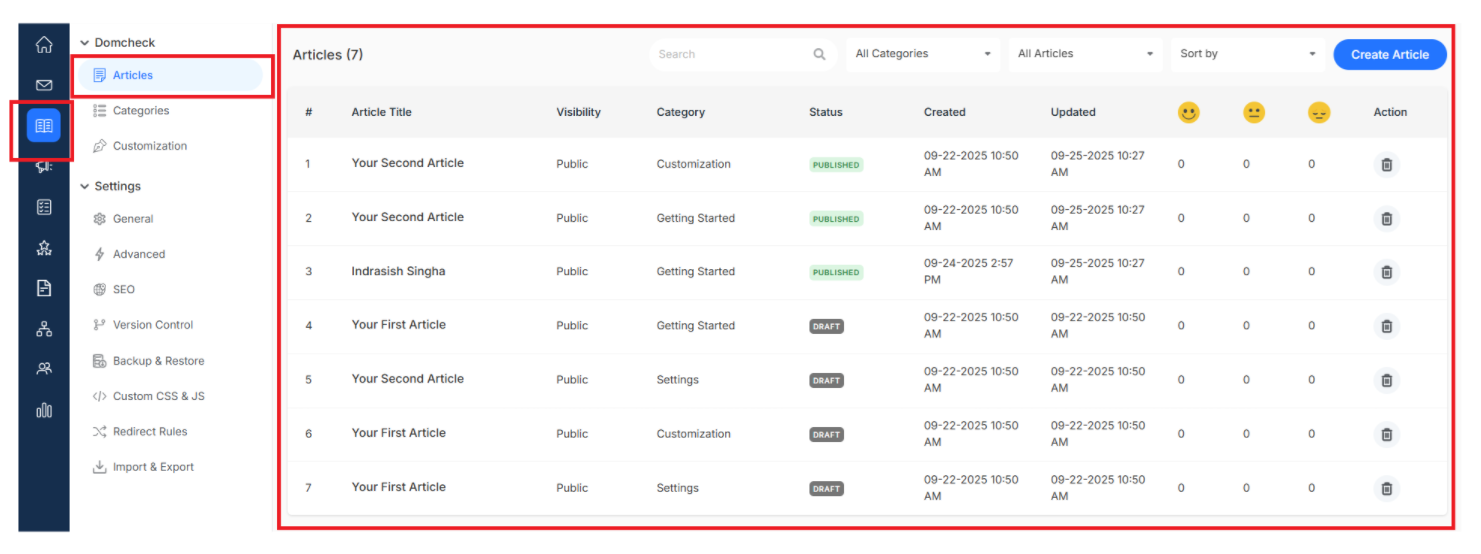
Sort and Organize Articles
Transform your knowledge base into a perfectly organized resource that will be very easy to navigate and manage
Search Bar
Use the search bar to instantly find any article by typing its name. It is your personal assistant who knows exactly where the search topic is stored
Article Status
Sort articles by their status to identify which articles are published or saved as drafts or deleted. Managing a huge quantity of articles becomes easy using this process. Some of the sort-by-status options are:
- All Articles - Collection of articles in your knowledge base, regardless of their current status or stage.
- Published - Access active, publicly visible articles that have been reviewed and made available to customers for self-service.
- Trash - Review deleted articles that are temporarily stored before permanent removal from the knowledge base
- Draft - Access articles that are still being written or edited and not yet ready for public viewing.
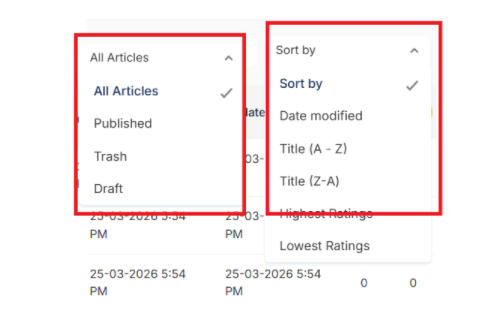
Sort By
Organize your articles based on different criteria to find exactly the topic you need. Some of the sorting options are:
- Date modified - Arrange articles based on their most recent update date to easily find the latest content revisions.
- Title (A-Z) - Sort articles alphabetically from A to Z for systematic browsing of content.
- Title (Z - A) - Organize articles in reverse alphabetical order from Z to A for alternative content navigation.
- Highest Rating - Display articles ranked by user ratings, with the highest-rated content appearing at first.
- Lowest rating - sort based on user ratings with the lowest-rated content at the top.
Create a New Article in Help Center
Step 1:
Navigate to Knowledge Base > Articles > Create and get ready to start writing
Article Writing consists of two sections:
- The writing and editing section
- The other section is the article settings section.
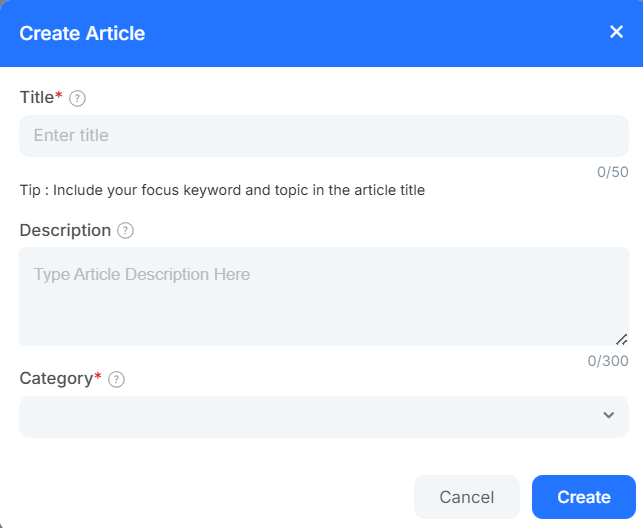
Field Required are:
- Article Title: Create a clear, searchable title that instantly tells readers what problem you are solving.
- Description: A summary that explains exactly how this article will help
- Category Assignment: Perfect category for your article, so you can find it easily when browsing the knowledge base.
Click Create and you've just laid the foundation for your article
Writing and Editing
- Article Header - A suitable and simple heading to your article, consisting of keywords.
- Article Description - A brief description of your article, which will be easier for readers to understand.
- Article URL and Edit URL - Link to the article where it will be visible, and also have the option to customize the URL.
- Writing Section - This is where you write clear, concise, readable content using the built-in editing tools.
Article Settings
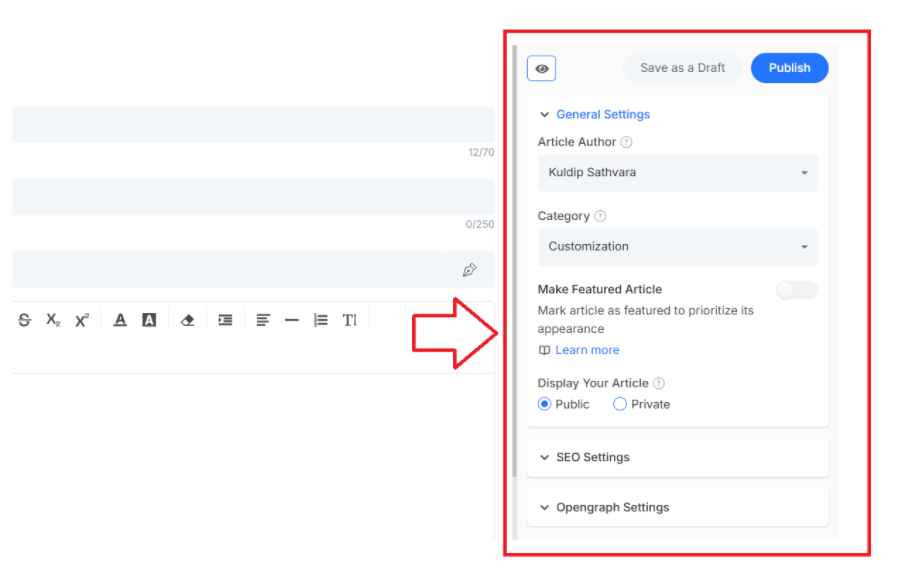
- Preview - Take a sneak peek at the article before going live, ensuring everything appears perfect..
- Save as Draft - Keep working on your article without publishing it yet (example use for complex topics that need time)
- Publish - Make your article live in your knowledge base after review.
General Settings
General Settings allow you to configure properties of your article, such as authorship, categorization and visibility options. It ensures your content is properly accessible to the right audience.
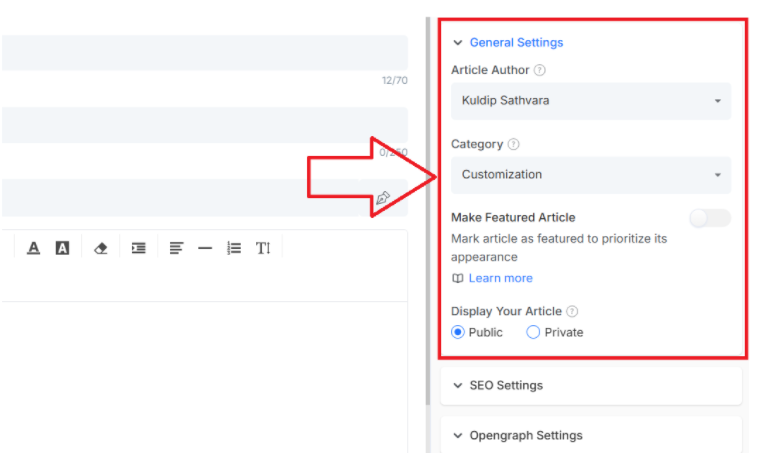
- Article Author: Set the writer who has written the article and maintains the content.
- Category: Select the appropriate category to organize the article within the knowledge base.
- Make Featured Article: Toggle this option to highlight the article on your knowledge base homepage.
- Display Your Article: Choose between Public (visible to all visitors) or Private (restricted access) visibility for content.
SEO Settings
SEO Settings optimize your article for search engines to help customers find your content through search platforms. Proper SEO increases organic traffic and improves your knowledge base's accessibility.
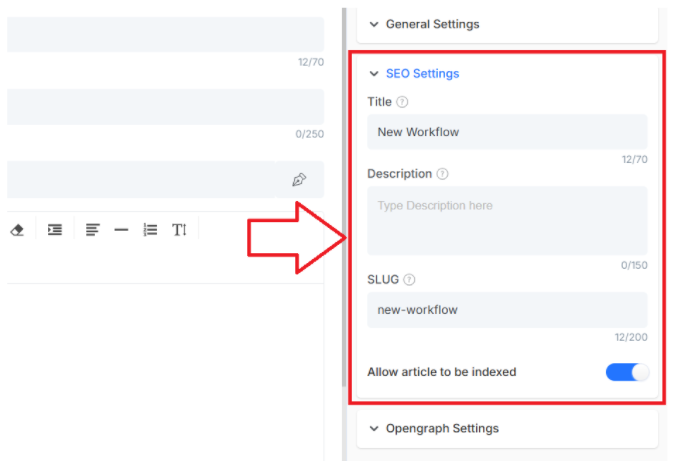
Title: Create a search-optimized title (up to 70 characters) that includes relevant keywords.
Description: A compelling meta description (limit up to 150 characters) to summarize your article for search results.
SLUG: Customize the URL slug (up to 200 characters) to create clean and SEO-friendly article links.
Allow article to be indexed: Toggle this setting to control whether search engines can crawl and display your article.
Opengraph Settings
OpenGraph Settings control how your article appears when shared on social media platforms. Optimized social sharing settings help to increase engagement and drive more traffic.
Title: Set a title (up to 70 characters) specific to social media that captures attention when shared.
Description: Craft an engaging description that encourages social media users to click through.
Image: Upload a visually appealing image (JPEG, 1200×633 pixels, max 5MB) for social media posts.
What's next? Let's start building your knowledge base with its advanced features
- Knowledge Base Overview - Complete idea of your help center ecosystem
- Customize your help center - Make your knowledge base look branded
- Import and export knowledge Base - Learn how to move your valuable content