
Message campaigns are the perfect process for building relationships right where customers are already chatting. Send personalized messages through your chat messenger to welcome new visitors and re-engage quiet customers. Let's walk through creating campaigns that connect with people.
Perfect Times to Use Message Campaigns:
- Welcome new visitors - Greet people exploring your website with friendly introductions and helpful resources
- Win back quiet customers - Reach out to people who haven't been around lately with special offers and reasons to return
- Guide new users - Send helpful tips and training messages to help customers get the most from your service
- Boost seasonal sales - Time promotional messages perfectly to catch customers during peak shopping periods
Creating a Message Campaign
Step 1:
Navigate to Campaign > All Campaigns
Step 2:
Click on Create Campaign > select Message Campaign from the dropdown menu to get started.
Note: Want to know about other types of campaigns? Click here
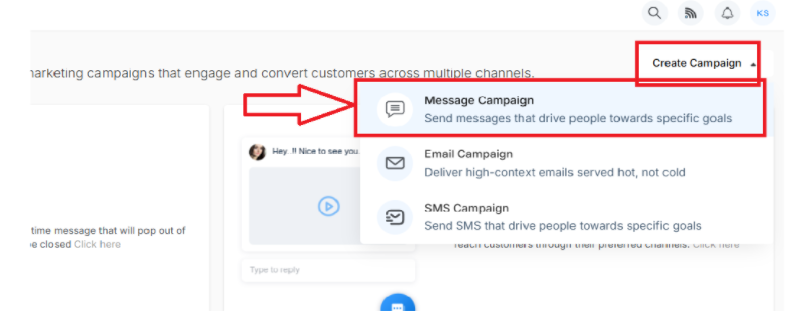
Step 3:
Time to set up your message campaign basics by filling out these details on the Configuration page: Hit Next when you have configured your campaign.
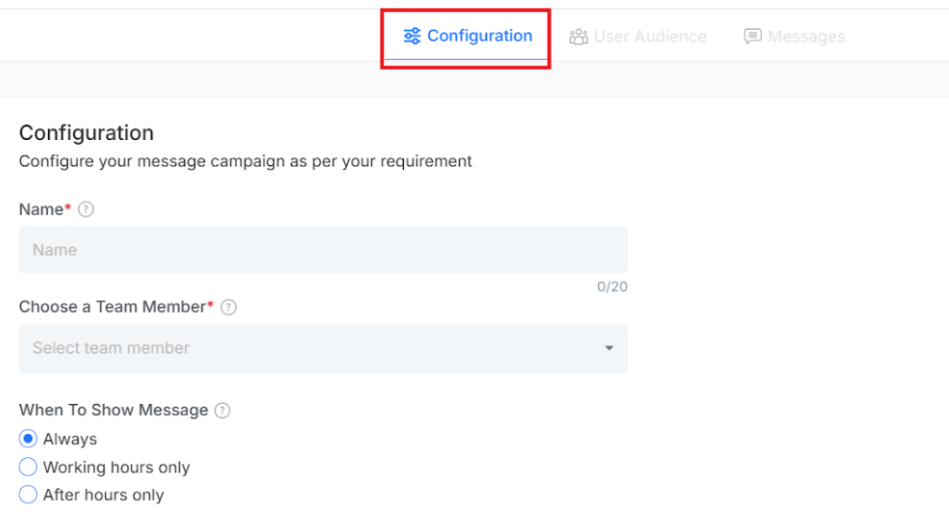
- Name - Give your campaign a clear, memorable title
- Team Member - Choose who'll manage this campaign
- When to Show Message - Pick the perfect timing for your campaign to go live
- Always - Send messages regardless of business hours, for maximum reach
- Working Hours Only - Deliver messages only during your defined business hours for professionalism
- After Hours Only - Send messages exclusively outside business hours when they might have more time to engage
Step 4:
The audience selection step is crucial for campaign success, as it helps to set up who will receive your messages based on specific criteria
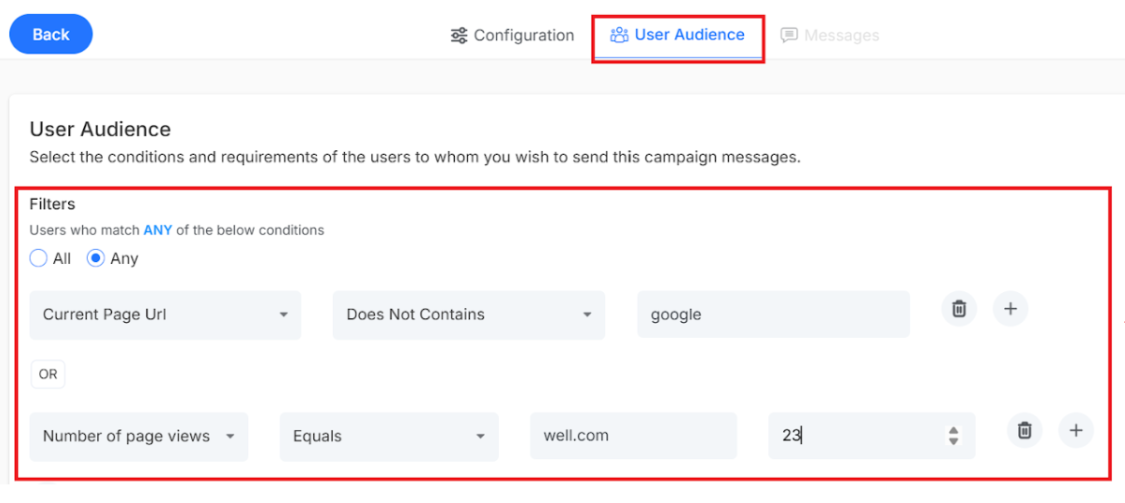
Choose whether users must meet All or Any one of the conditions for inclusion in your campaign. Click Next once you've defined your perfect audience. The selection criteria
Filter Options:
- Current Page URL - Target users are currently viewing a specific page of your website
- Number of Page Views - Reach visitors based on engagement by setting a minimum or maximum page views.
- Time on Current Page - Users who have spent a specific amount of time on a page.
- Number of Visits - Segment by visitors who frequently return.
- State - Reach users from specific states for location-relevant campaigns.
- City - Focus on users from particular cities for area-specific promotions.
- Device Type - Messages for mobile or desktop users
- First Seen - New visitors or returning customers
Advanced conditions
Use conditions to create sophisticated targeting rules to make sure that your message reaches exactly the right audience.
For example, in the number of page views, the filtering operation will be as below
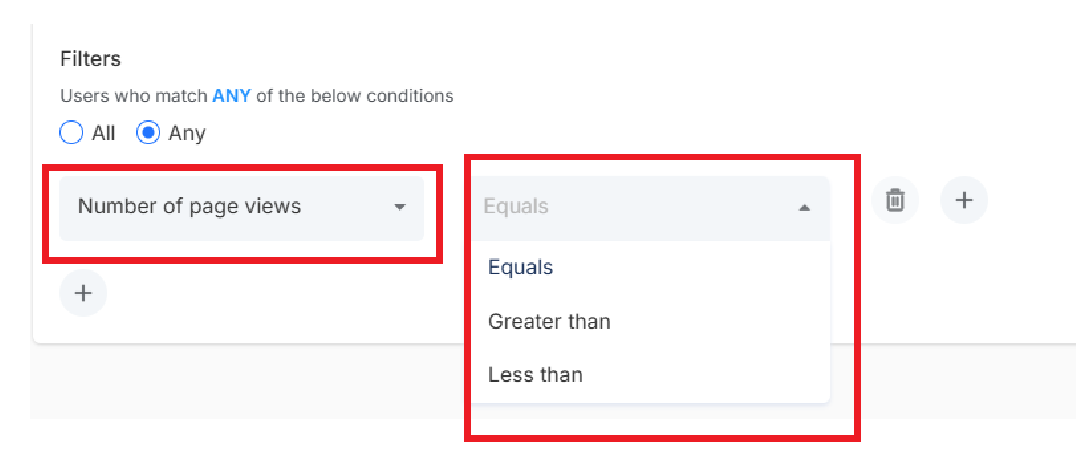
And the condition for the defined operation will be as follows
Note: These targeting rules will be different for each targeting condition.
Step 5:
Time to craft your message! This is where your campaign comes to life. Your message campaign editor provides three versatile content blocks that can be combined to create an engaging campaign.
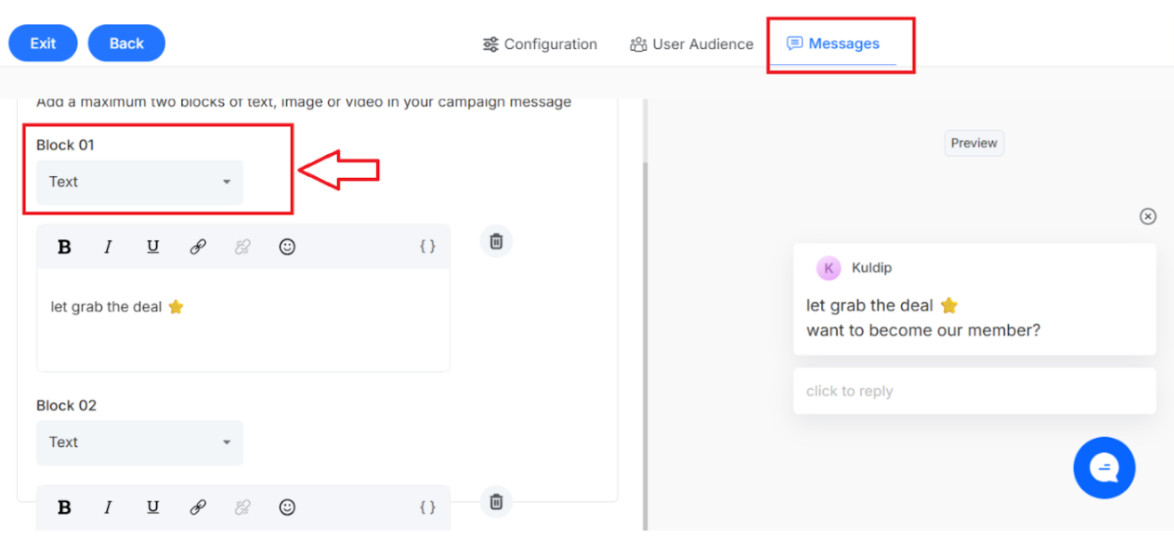
Important: You can use any two of these three block types in a single campaign:
1. Text Message Block
Select the text option to craft comprehensive messages using the built-in text-based editor
Specify the text-based content that you want ot send it to your targeted customers and encourage a response.
2. Image Message Block
Select the image option to add visual appeal and communicate to enhance your message impact. Image Specifications:
- Supported formats: JPG, JPEG, PNG
- Maximum file size: 1MB
- Optimal resolution: 1080 x 1080 pixels
- Upload from local drive or insert image links
3. Video Message Block
Choose the video option to include dynamic visual content that captures attention effectively. you can either upload a video file from your computer or paste a link of an online video.
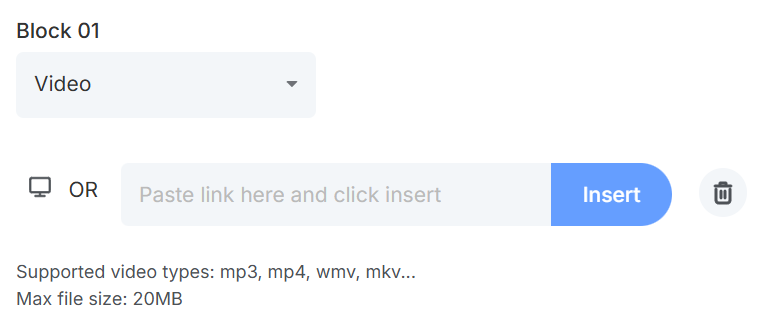
Video Specifications:
- Supported formats: MP3, MP4, WMV, MKV
- Maximum file size: 20MB
- Upload from local drive or insert video links
Use the Preview option to see exactly how the message campaign will appear to your customer to ensure that it creates the intent across multiple devices
Hit Create and your message campaign is ready to start engaging customers.
Ready to expand your campaign toolkit?
- Create email campaigns - Design beautiful emails that boost relationships
- Build SMS campaigns - Send quick, targeted text messages customers love. Video Specifications:
- Supported formats: MP3, MP4, WMV, MKV
- Maximum file size: 20MB
- Upload from local drive or insert video links
Use the Preview option to see exactly how the message campaign will appear to your customer to ensure that it creates the intent across multiple devices
Hit Create and your message campaign is ready to start engaging customers.
Ready to expand your campaign toolkit?
- Create email campaigns - Design beautiful emails that boost relationships
- Build SMS campaigns - Send quick, targeted text messages customers love