
Chat surveys automatically appear at the end of your customer support conversations, which gives instant insights into how satisfied customers. It gives a quick check-in that shows you care about their experience and helps your team keep improving. This article will guide you to create a chat survey.
Create a Chat Survey
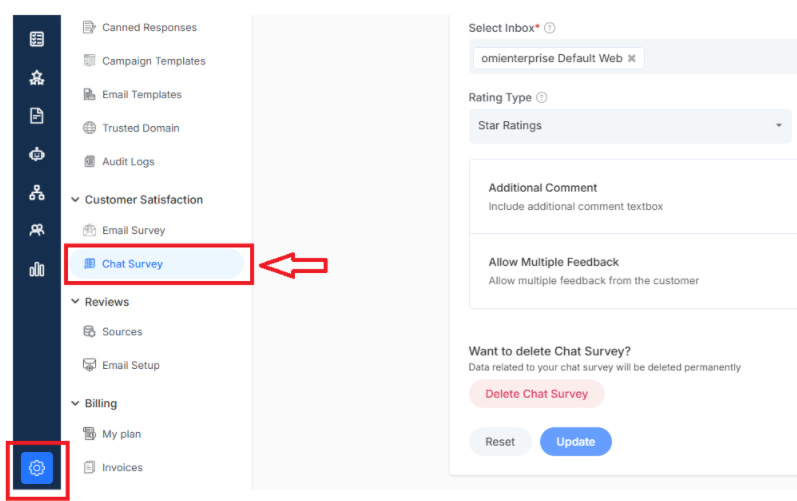
- Navigate to Settings from the dashboard menu
- Under customer satisfaction, click on Chat Survey
- Click on Add Chat Survey
Design Your Chat Survey
-
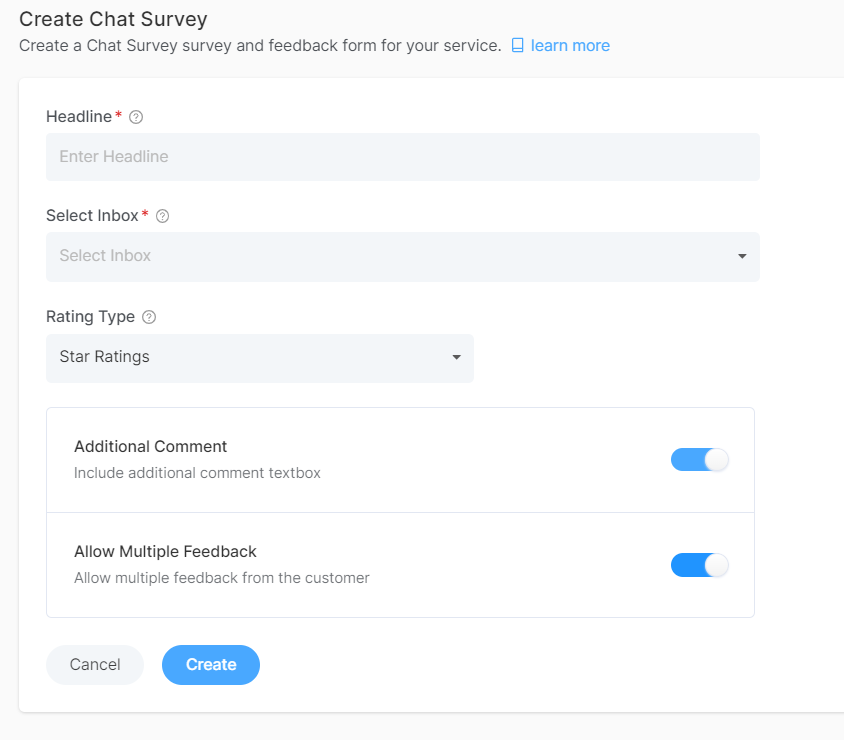
- Headline – Create a friendly title like "How was your chat experience?" which appears after the session.
- Select Inbox – Choose which chat conversations you will receive the survey.
- Rating Type – Set stars, numbers, or emojis for customer satisfaction scores.
- Additional Comments – Let customers share detailed feedback beyond ratings in text form
- Multiple Feedback – Ask for different aspects, such as response speed and solution quality in one survey.
- Emoji Rating - let customers rate you in terms of emojis to express their satisfaction
- Star Ratings - Let customers rate you in terms of stars, like 1,3, or 5, to express their satisfaction level
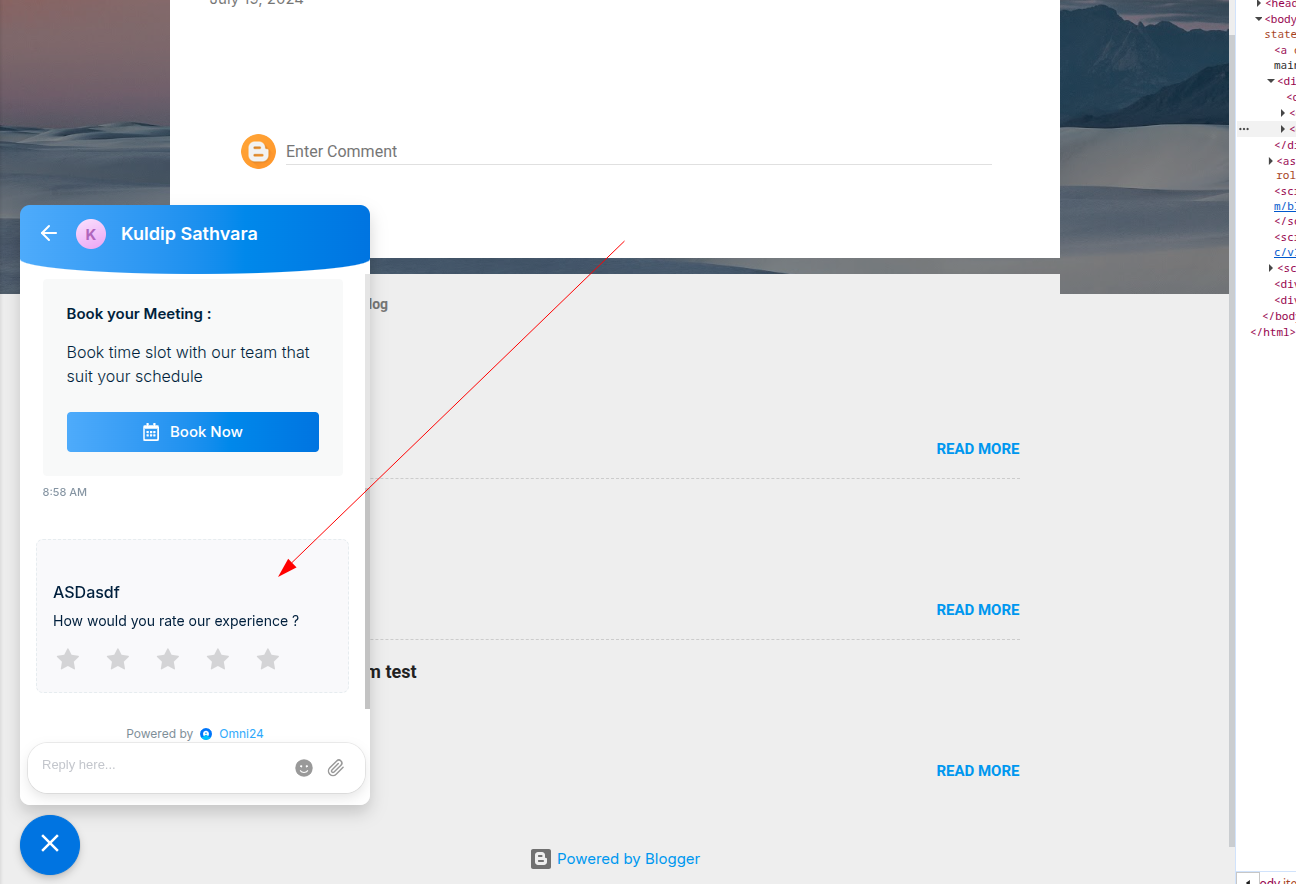
Once done, click on Create, and the survey appears right at the end of the chat session
What's next? Let's explore other aspects of customer satisfaction
- Generate email survey - Follow up on email support conversations
- Integrate chat messenger with your website - Get your chat widget working on your website