
The Email Template feature allows agents to save and reuse pre-written email responses, inserting customizable fields for personalization. It's like having a library that you can quickly share with customers while maintaining brand consistency. Let's explore how to create an email template.
Benefits of using Email Template:
- Reduces response time significantly by eliminating the need to compose frequently used messages from scratch.
- Minimizes errors and typos through pre-approved, professionally crafted content.
- Handle more customer inquiries with less effort, leaving your agents feeling accomplished
Creating Your Email Template
Step 1: Find Your Template Hub
- Navigate to Settings from your main dashboard menu
- Scroll down to the Productivity section
- Click on Email Template and hit Add to create
Step 2: Build Your Perfect Template
- A Create Email Template page will open up
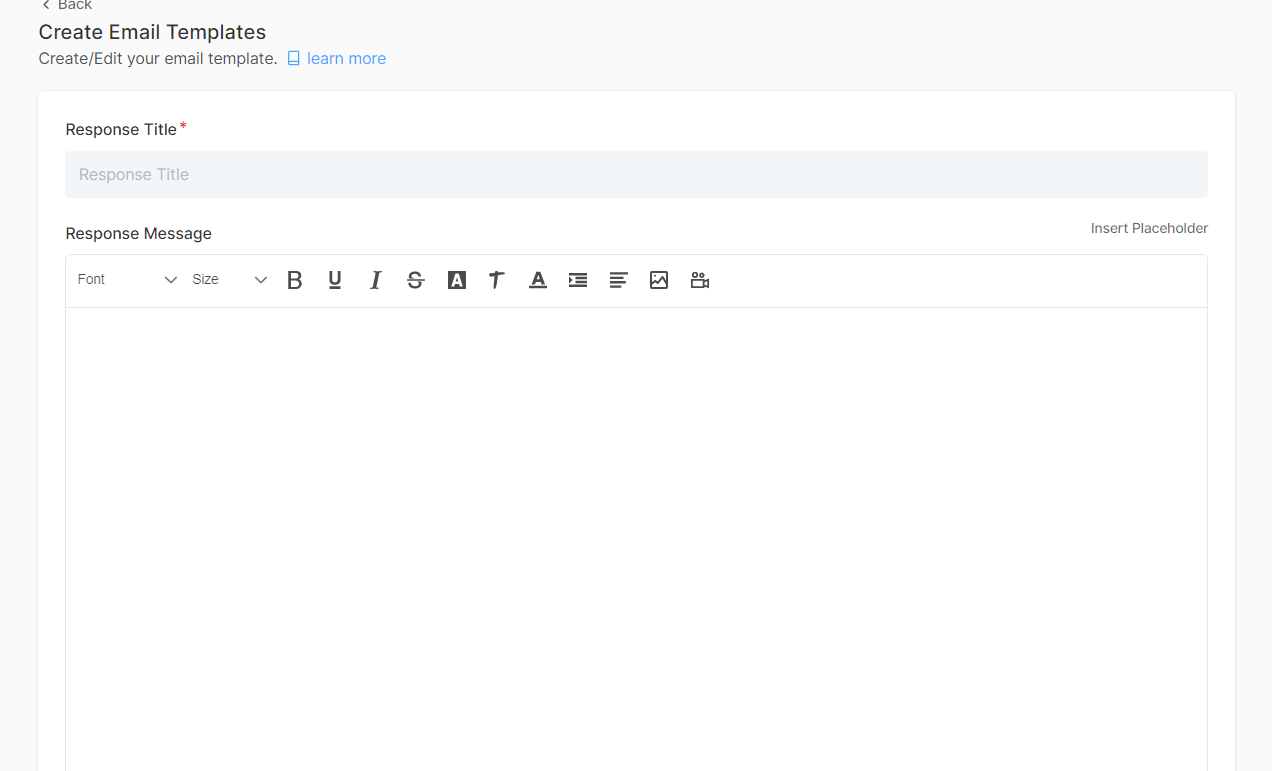
- Enter a title for the template,
- Write the template message in the editor section.

- Share this email template to anyone from the dropdown.
Once done, click on Create, and you have successfully created a custom email template
How to add an email template to a conversation
Ready to put your template to work? Here's how to add it to actual customer conversations:
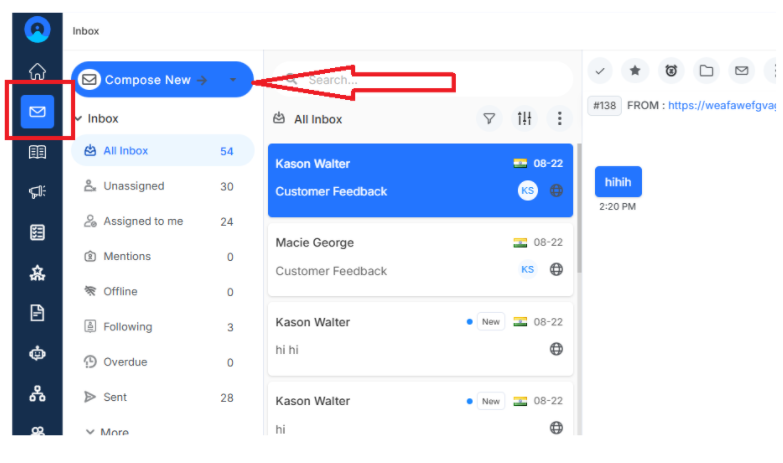
- Navigate to the Inbox section, where all your customer conversations live
- Click Compose New to start a fresh email
- Click on Email Template to see your library of saved responses
- Choose a template from your list and add it to the conversation
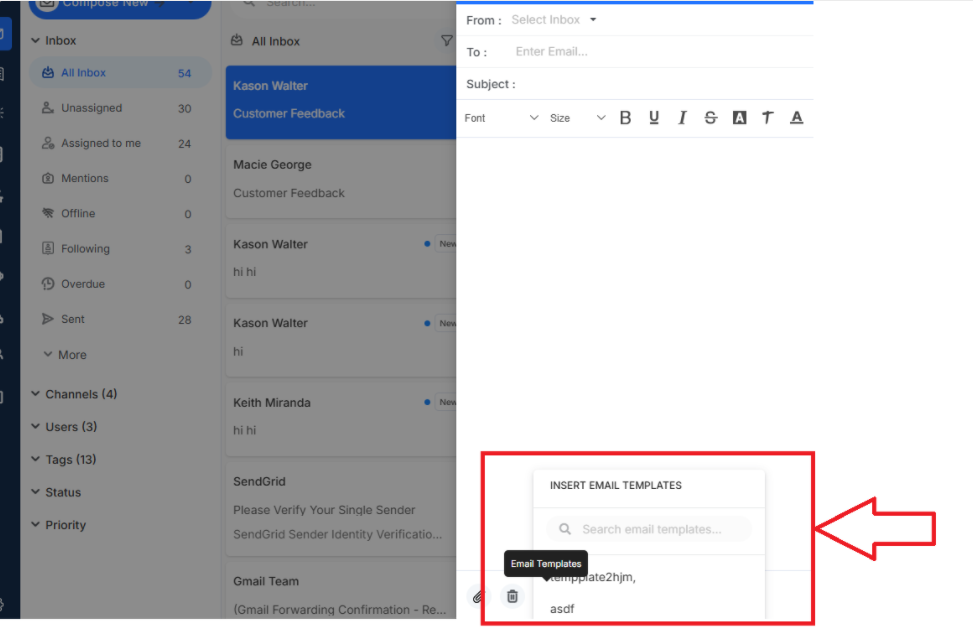
Note: Now you can customize it with specific details for that customer while keeping all the structure and messages
What's next? Let's keep building your customer communication tool:
- Know more about inbox: Learn advanced techniques for managing customer conversations
- Create email survey: Build surveys that get great response rates